Working with Data Integration support
Support center overview
The Support Center lets you contact Boomi technical support for product help and troubleshooting.
The Support Home page consists of:
- Quick links to helpful resources.
- Technical Bulletins - Important product and support-related announcements.
- Support Contact Information - Your contact options for your support entitlements and region.
- My Account Team - Your Boomi Account team for account and subscription inquiries.
- Support Cases - View your open support cases, closed cases, and cases created by other users within your organization.
- Live Chat - Available with a Premier or Premier Plus support subscription.

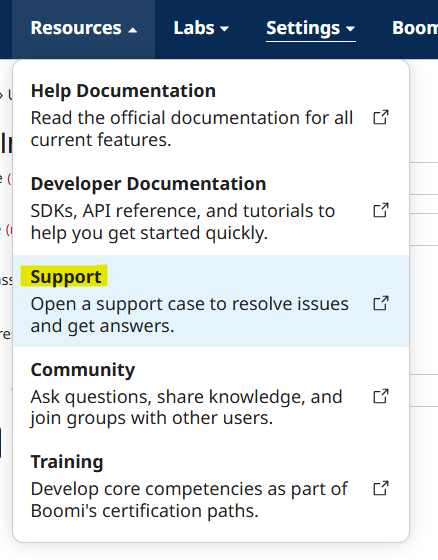
To access the Support Center within the platform, navigate to Resources > Support.
To access the Support Center, you must add the user to the Platform Account. If the user already exists on the Platform and still does not have access to Support Center, reach out to Boomi Support.
Creating a case
-
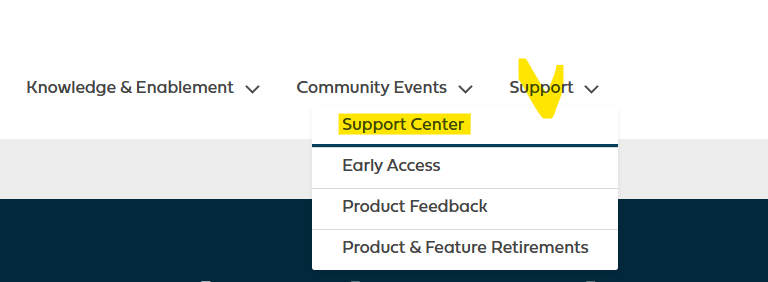
To submit a new case, go to Support and click Support Center.
-
In the Contact Us section, choose Create a Product Support Case.

-
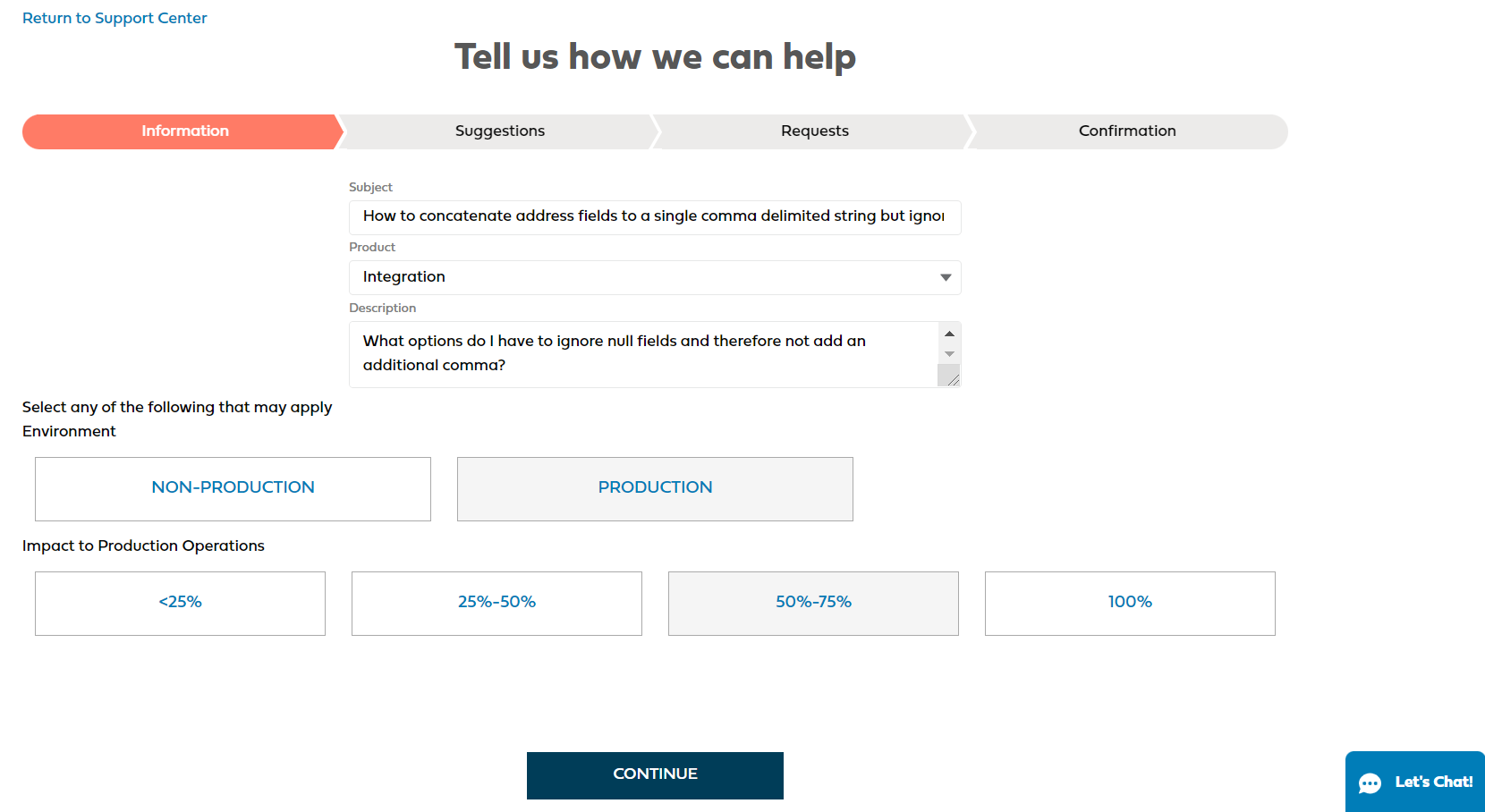
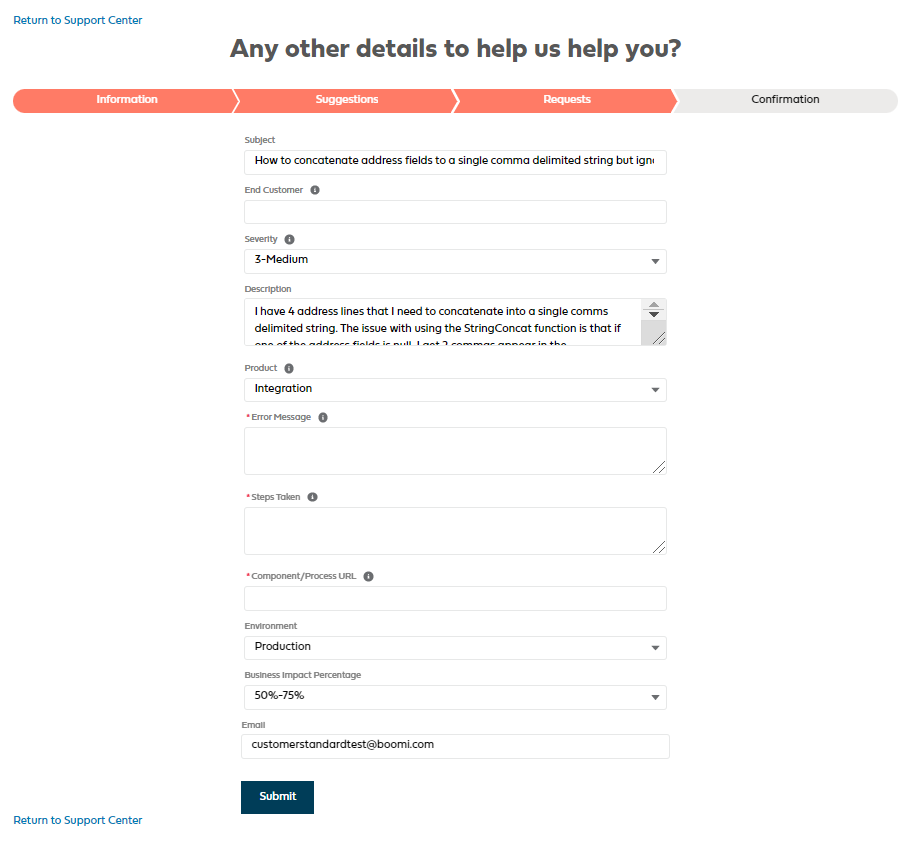
Enter a subject and provide the information about the issue or request. Select the correct environment classification. If you select Production, you must provide a Business Impact Percentage.
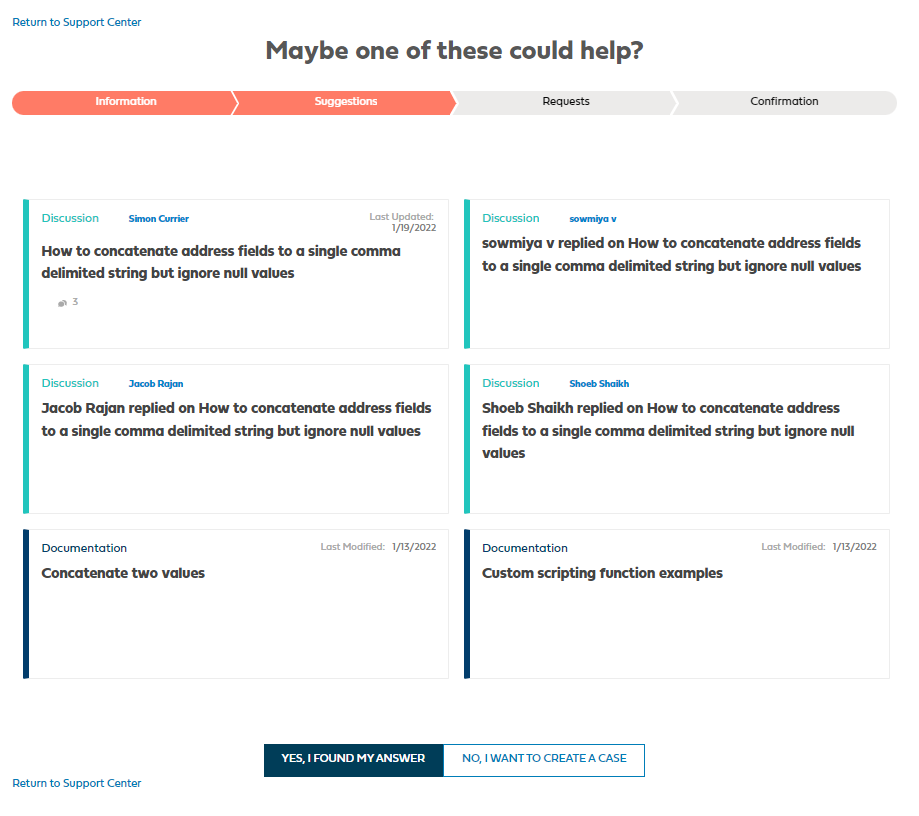
- As you continue to the next page, you can view the suggested articles and content to try to help you resolve the issue quickly. If a suggested article resolves the issue, select Yes, I found my answer. Otherwise, continue creating the case. Click Return to Support Center to cancel the case creation.
- Provide a detailed Description, Error Message, Component/Process URL, and Steps to reproduce. When finished, click Submit. You can attach any relevant log files, data files, screenshots, or other helpful information on the confirmation screen. You can view your new case number and receive an email confirmation.
Viewing and adding comments
The support agent works with you to resolve the issue, and the support agent adds comments to the case. You can view the conversation history below the case details and receive an email for each reply.
To post a reply, enter your message and click Comment, and also attach additional files.
After entering a new comment, REFRESH your browser to view the latest comment in the case history.
Tips to help resolve issues as quickly as possible The more information you provide about the issue, such as the context in which it occurred, your component configuration, and relevant environment details, as well as what you have already done to troubleshoot, the quicker the support team can work towards a resolution. When in doubt, more details are better.
- Subject - A complete summary of the issue while trying to be as specific as possible.
- Description - Provide concise details of the issue and include any helpful information that helps point to the error logged in your account.
- Error Message - Refer to the error generated by the process. Include the relevant stack trace when necessary. You can find it within the Process Logs, on the Process Reporting page, or in the logs of individual steps within Test mode. Whenever possible, copy the error message text rather than a screenshot of the error.
- Steps Taken - Share the steps you have taken to troubleshoot the issue. This can provide additional clarification on the issue and avoid recommendations that you have already tried.
- Component/Process URL - The direct link (copied from your web browser) to the component that is experiencing the issue. This can include the whole process, an individual component within the process design, a process reporting link, or a link to the basic runtime/runtime cluster/cloud.
For more information, refer to MDH specific case information and API Management specific case information topics.
You can attach screen captures and relevant files using the Upload File link at the bottom of the page.
Starting a chat
Click Let's Chat in the lower right corner of your browser.
It launches the Chatbot. If Chatbot does not answer your question, Select Check if Support team is online to chat with a live agent.
Live Agent Chat is available with a Premier or Premier Plus support subscription.
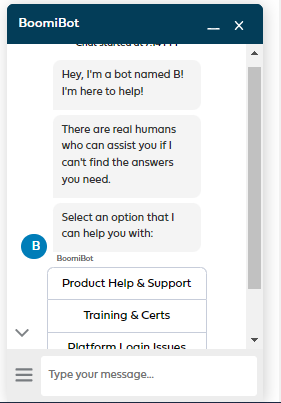
When the chat gets accepted by a Support Engineer, the platform creates a case for your records.
