Configuring Sub Data Flows
Sub Data Flows let you embed smaller and specialized processes within the larger Data Flow. The sub-processes can inherit configurations and settings from the main Data Flow or use unique parameters. You can build flexible, modular data pipelines that efficiently handle complex workflows.
Before you begin
Before configuring Sub Data Flows, ensure you have the following:
- An active Data Integration account.
- An existing Source to Target Flow configured with the Custom Report source option, or permission to create one.
- Valid credentials for each source connection you plan to use across your Sub Data Flows.
Consider an agency that uses Data Integration to manage Facebook Ads data for multiple customers. Instead of duplicating the entire Data Flow configuration for each customer, the agency creates a Sub Data Flow for each customer, letting them tailor the data pulled specifically for that customer while maintaining common definitions across all Sub Data Flows, providing scalability and reducing the need for duplication.
Procedure
- Navigate to the Data Integration Console.
- Click Data Flows from the left-hand menu.
- Click ADD Data Flow and select Source to Target Flow or choose an existing Data Flow.
- Select the Custom Report option in the Source tab.
- Select a Target, navigate to the Settings tab, and turn on the Sub Data Flows. A Sub Data Flows tab appears in the Data Flow editor when enabled.
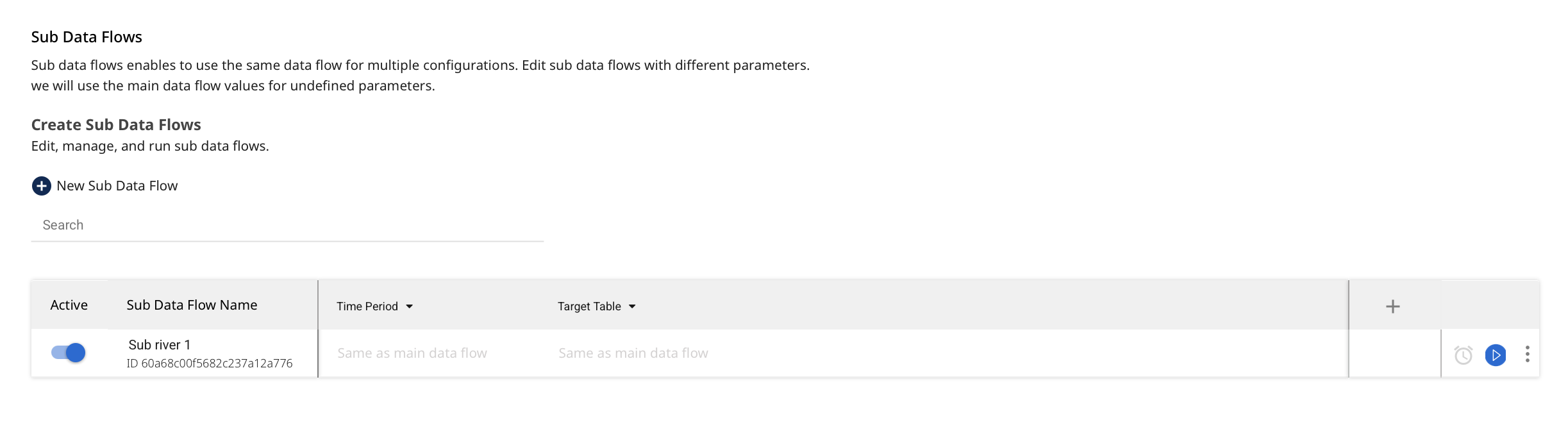
- In the Sub Data Flows tab, click New Sub Data Flow to create your first sub Data Flow -
Sub {conKeyRefs.DataFlow} 1. You can rename it as needed.
Supported Sources
Supported Targets
- Selecting the Source Connection parameters adds them to the Sub Data Flows list, letting each Sub Data Flow use a different connection from the main Data Flow.
Each Sub Data Flow can have a separate Data Integration source connection while pulling data.
-
For each parameter within the Sub Data Flow, do one of the following:
a. Use the value inherited from the main Data Flow.
b. Enter a custom value unique to that Sub Data Flow. -
Each Sub Data Flow runs on its own schedule or inherits the main Data Flow’s schedule. Click the clock icon next to the parameter drop-down to configure Sub Data Flow-level scheduling.
Monitor the flow
After the Data Flow runs, open the Activities tab in the right-hand menu to review run status and logs for the Data Flow and its Sub Data Flows.
Limitations
- You cannot deploy a Data Flow with Sub Data Flows between Environments.
- You cannot create versions for Sub Data Flows.
- Copying a Data Flow with Sub Data Flows does not duplicate the Sub Data Flows, but only the primary configuration.
