Logic Flow overview
The term Logic Flow comes from their reliance on a logical data model that outlines the configuration of data elements and their associations with different Data Flows.
Logic Flow serve as tools for workflow orchestration and data transformations. They can accommodate other Data Flows and support both SQL (for in-warehouse transformations) and Python (for more complex processing).
The Data Integration Orchestration supports branching, multi-step processes, conditional logic, loops, and other features. These features make it easy to design complex workflows.
Creating a Logic Flow
Logic Flow can orchestrate your data workflow and build your data warehouse using in-database transformations. You can orchestrate a series of logical steps without coding, and each step can perform a different process on your data.
Procedure
- Navigate to the Data Integration Console.
- Click the Data Flow tab from the left-hand menu.
- Click Add Data Flow and choose Logic Flow.
- In the Logic Flow, configure the Data Flow Name and select the appropriate environment (if applicable).
- In the Logic Step, choose from one of the available step types:
- SQL / DB Transformation – for in-warehouse transformations using SQL.
- Data Flow – to trigger an existing Data Flow.
- Action – to make a custom REST call.
- Python – to write a Python script for data processing.
- (Optional) After adding multiple steps, click Add Container to group them.
a. Configure containers to run steps in parallel, sequentially, or with conditional logic.
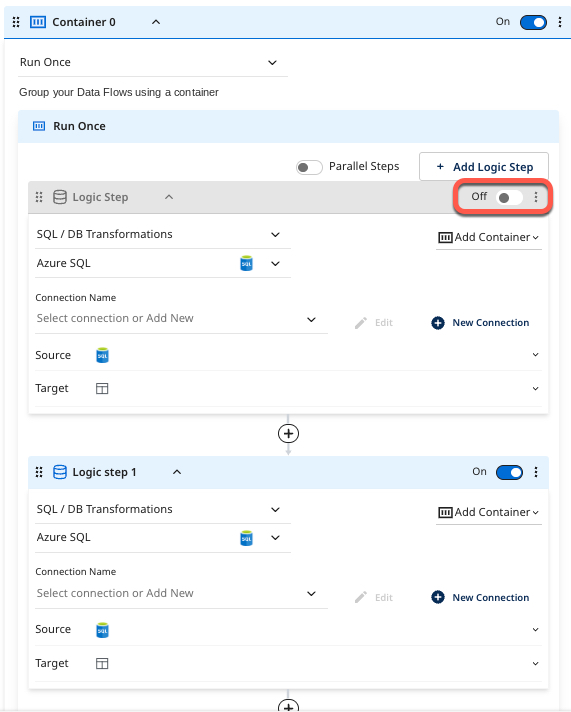
b. (Optional) Turn off the toggle on any step or container during testing or development to temporarily remove it from execution. - Click the Variables tab to define and assign Data Flow Variables or Environment Variables across steps.
- Configure each step:
- For SQL / DB Transformation, select your database connection, write your query, and define the Target ( Database Table, Variable, File).
- For Data Flow steps, choose the Data Flow you want to trigger and set any required parameters.
- For Python steps, write or paste your Python code and define output handling as needed.
- Click Save after configuring each step.
- Click Run to execute the workflow, or use Schedule to automate the execution.
Logic step types
- SQL / DB Transformation: Run an in-database query or a custom SQL script using the syntax compatible with your cloud database, and then save the results into a table, file, DataFrame, or variable.
- Data Flow: Trigger the existing Data Flow within your account. This could be a Source to Target Flow that you wish to coordinate alongside other Source to Target Flow and transformation steps.
- Action: Make any custom REST call.
- Python: Use Python scripts for quick and easy data manipulation.
Logic container
After creating the first steps in a Logic Flow, you can wrap them in a container to organize your workflow. Containers let you group multiple logic steps and apply the same action to them, such as running steps in parallel or applying conditional logic.
For example, you can group multiple Data Sources to Flow (the ingestion Data Flow type) in a single container. Configure the container to run in parallel so that all jobs start simultaneously. When all steps in the container complete successfully, Data Integration executes the next step.
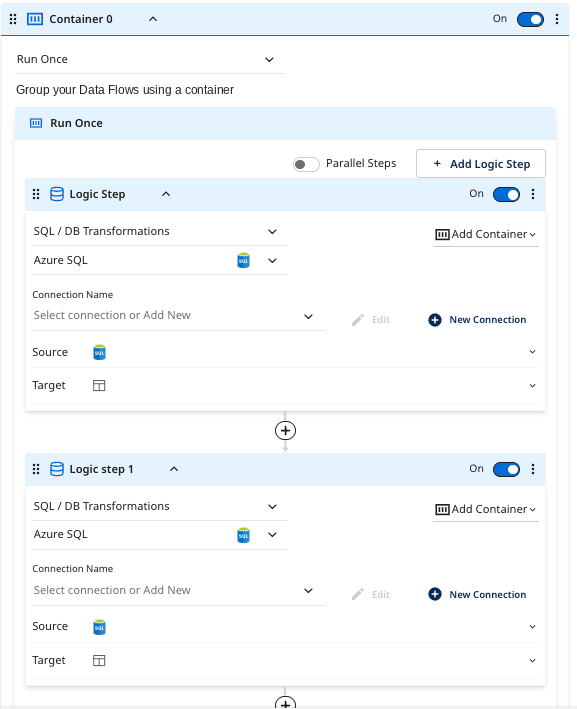
You can also turn off any container or logic step in the workflow. This modular structure lets you turn off longer-running steps while developing or testing other parts of the Data Flow.
Data Integration stores the results of your source query in a Database Table, Variable, DataFrame, or File Storage.
Working with variables
When saving data into a database table, you must specify the desired table name and location where Data Integration will store the query results. Data Integration supports multiple loading modes (Overwrite, Upsert-Merge, and Append). This takes no initial setup on the database side - if a table does not exist, Data Integration creates it.

Logic Data Flows can store data values in variables and use them throughout the workflow. You can store variables as Data Flow-specific Variables or environment Variables.
Containers let you organize and group logic steps, including looping and conditional logic. Since Data Integration recalculates variable values every time the Data Flow runs, this approach enables the development of a data pipeline.
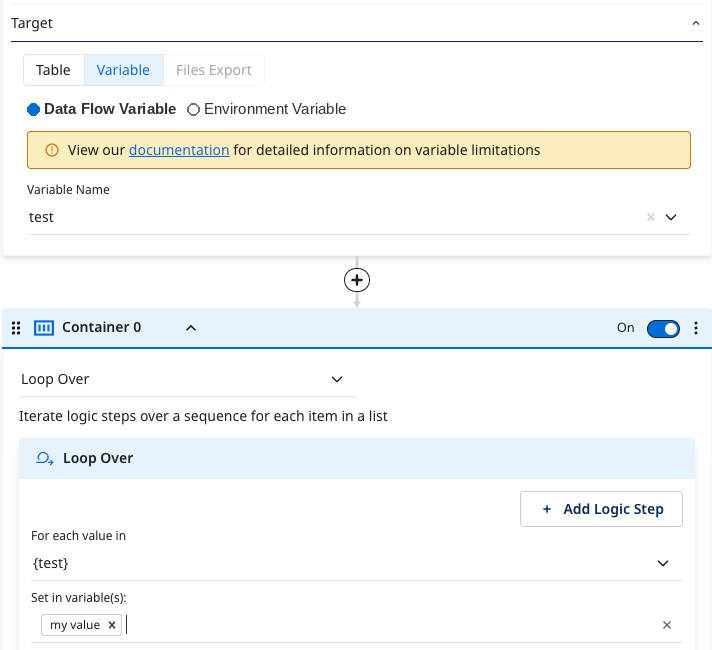
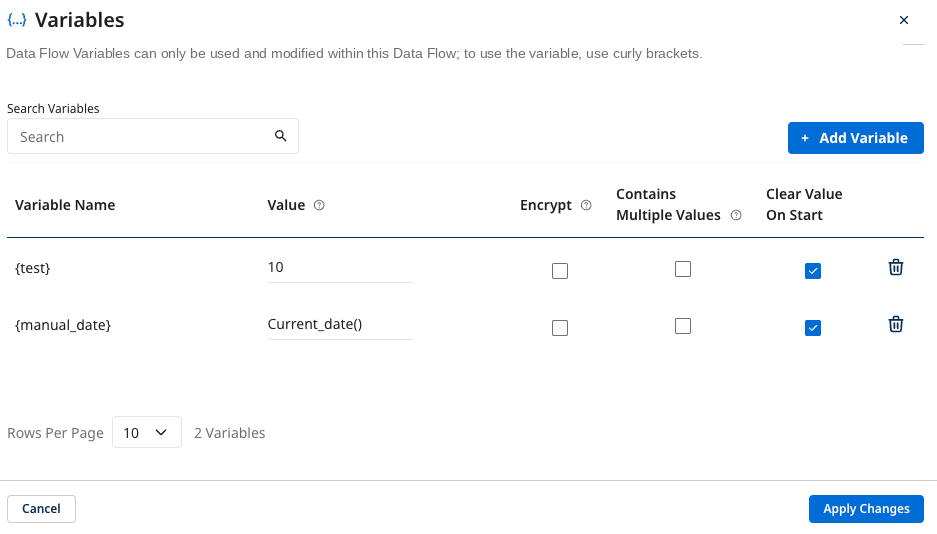
You can use variables in a Logic Flow to dynamically configure transformation steps. For example, attach the following variables:
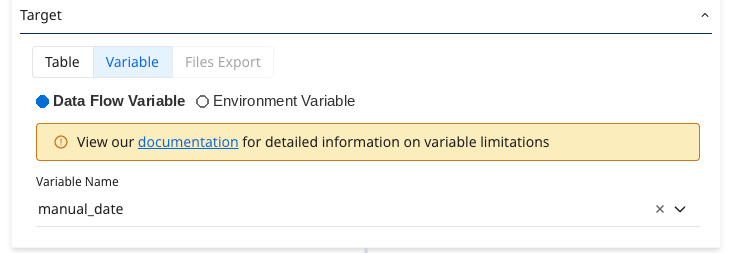
With the following values:
You can use the date variable in the SQL script and the target name:
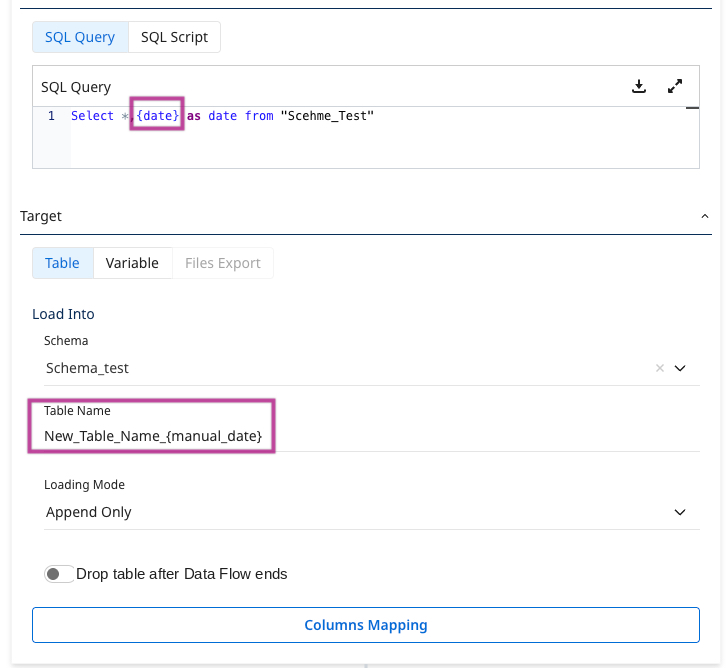
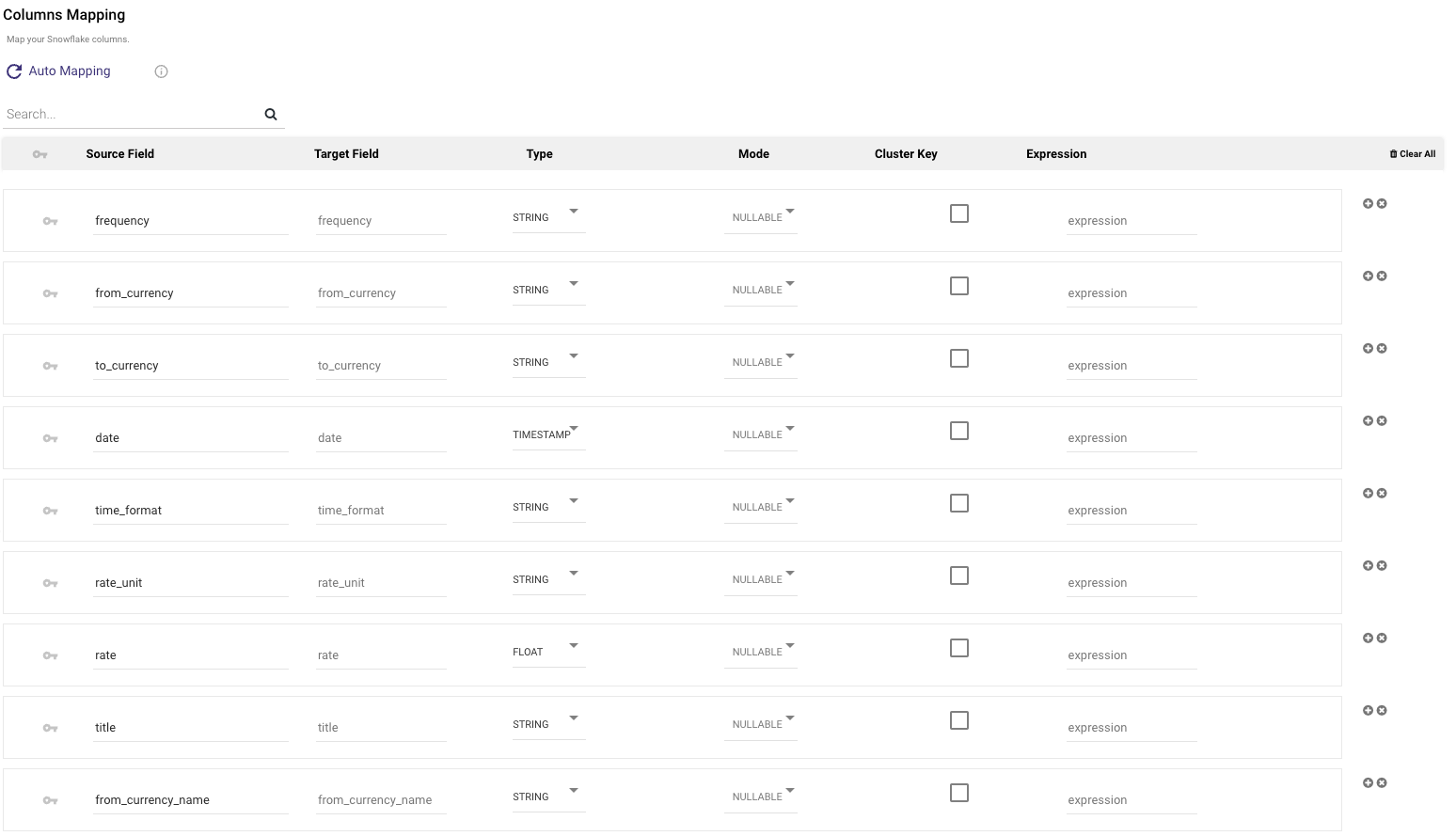
Example of auto-generated target mapping based on dynamic variables: