Report Service
Overview
The Report Service turns an existing ABAP report — together with its predefined SAP variants — into a callable Boomi service directly from the canvas. You search for a report by name, select one of its variants, and configure the service without manually re-entering parameters or reverse-engineering the report's logic.
- Search for an ABAP report by name or description
- Drag the report onto the canvas
- Select a variant on the report card
- Configure the service (name, description, mode, transport) and create it
- Test the service and review the execution results
Searching for a report
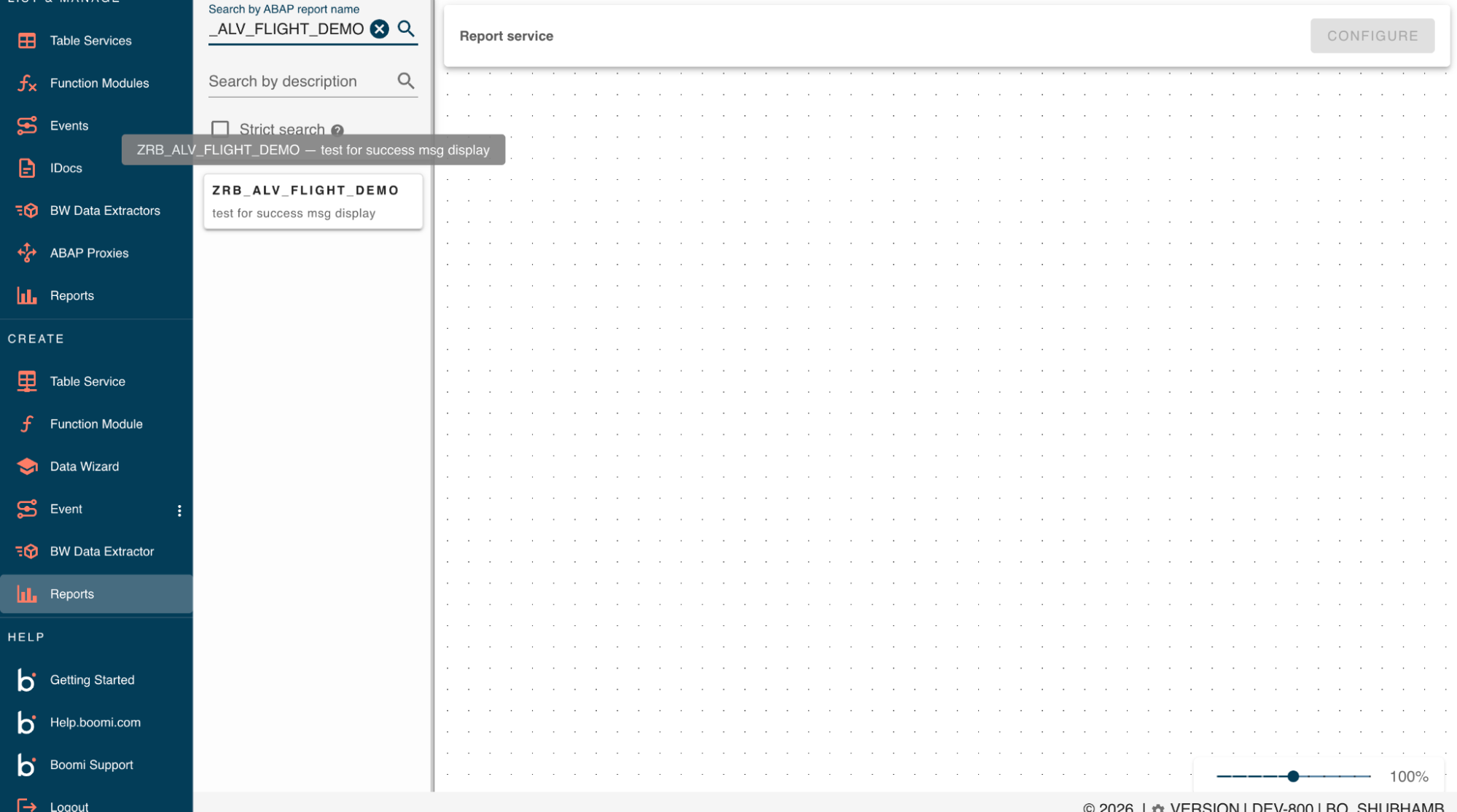
Click Reports in the Create section of the sidebar to open the Report Service workspace. This opens a two-panel layout: a left panel for searching reports and browsing variants, and a right canvas panel where the selected report is placed.
In the left panel, use either search field:
- Search by ABAP report name
- Search by description
Searches automatically append a trailing wildcard (*), so typing MAT matches any report starting with MAT. You can also type your own * (for example, *ORDER). Select Strict search to disable wildcards and search case-sensitively.
Adding a report to the canvas
Drag a search result onto the canvas, or double-click it.
The canvas holds only one report at a time:
- Dragging a new report replaces the existing card.
- Dragging the report that's already on the canvas again does nothing — it won't clear your current selection.
Selecting a variant
Each report card has a Select variant dropdown. A variant is required before you can configure the service. Until you select one, the card shows Required to configure, and both CONFIGURE and TEST remain disabled.
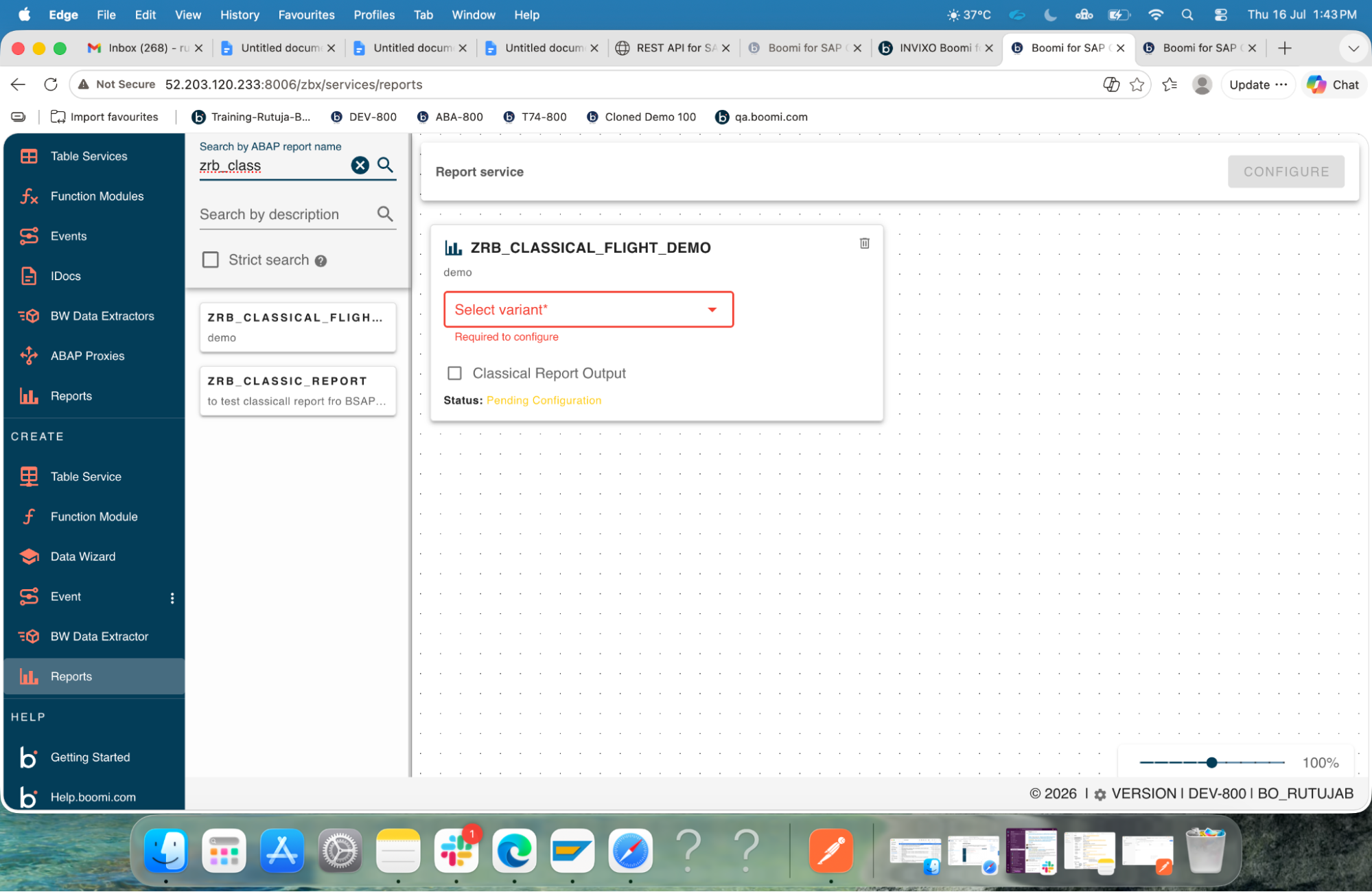
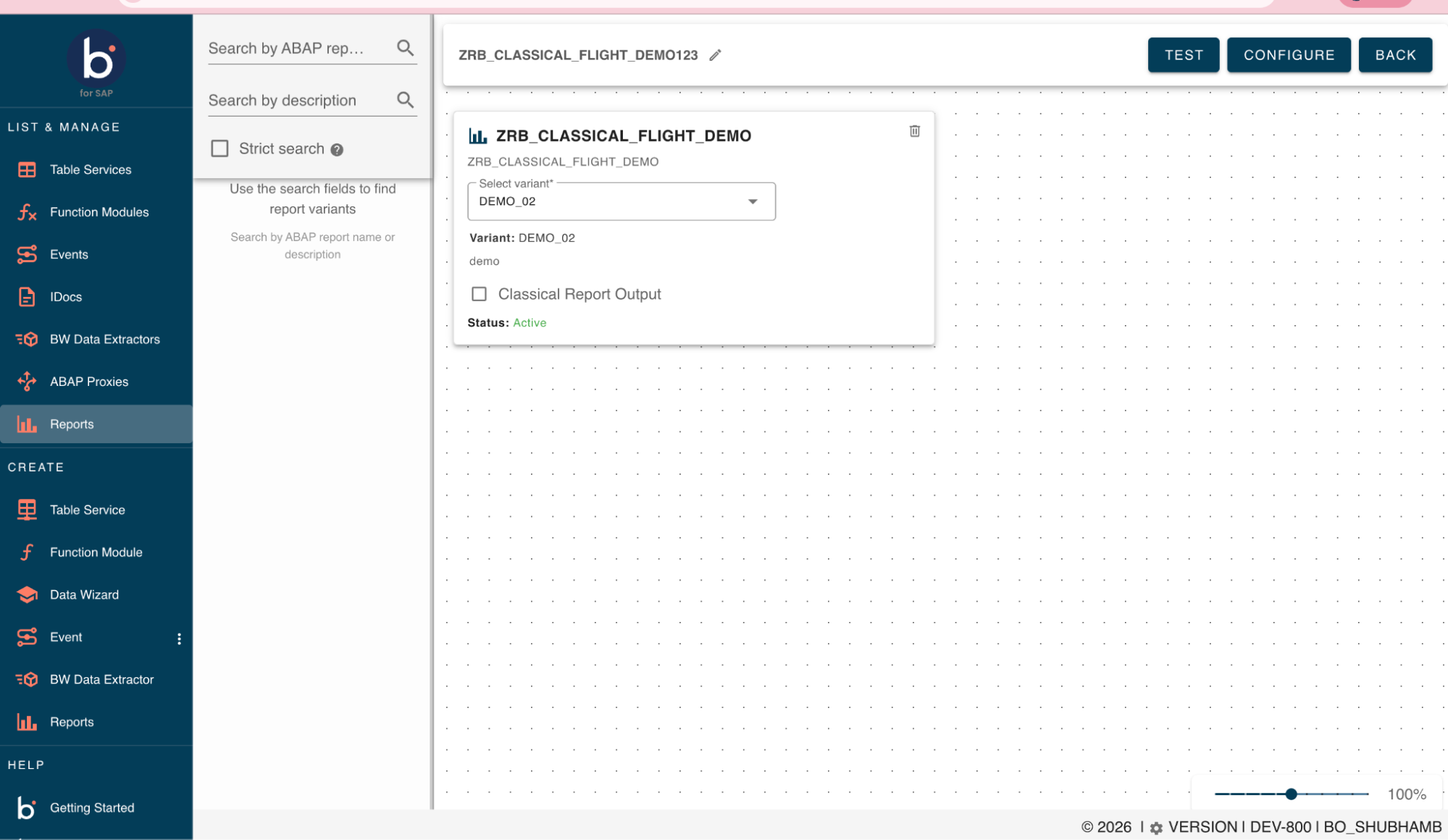
Once you select a variant, the card shows the variant name and description, and CONFIGURE becomes active.
Configuring the service
Click CONFIGURE to open the Service Configuration dialog. The report name and selected variant are sent automatically from the card — you only need to fill in the following:
| Field | Notes |
|---|---|
| Service name | Validated name, up to 30 characters. Disabled when updating an existing service. |
| Service Description | Up to 500 characters. |
| Mode | Production or Local. |
| Transport | Required, and enabled only when Mode is Production. Use the reload icon to refresh the transport list. |
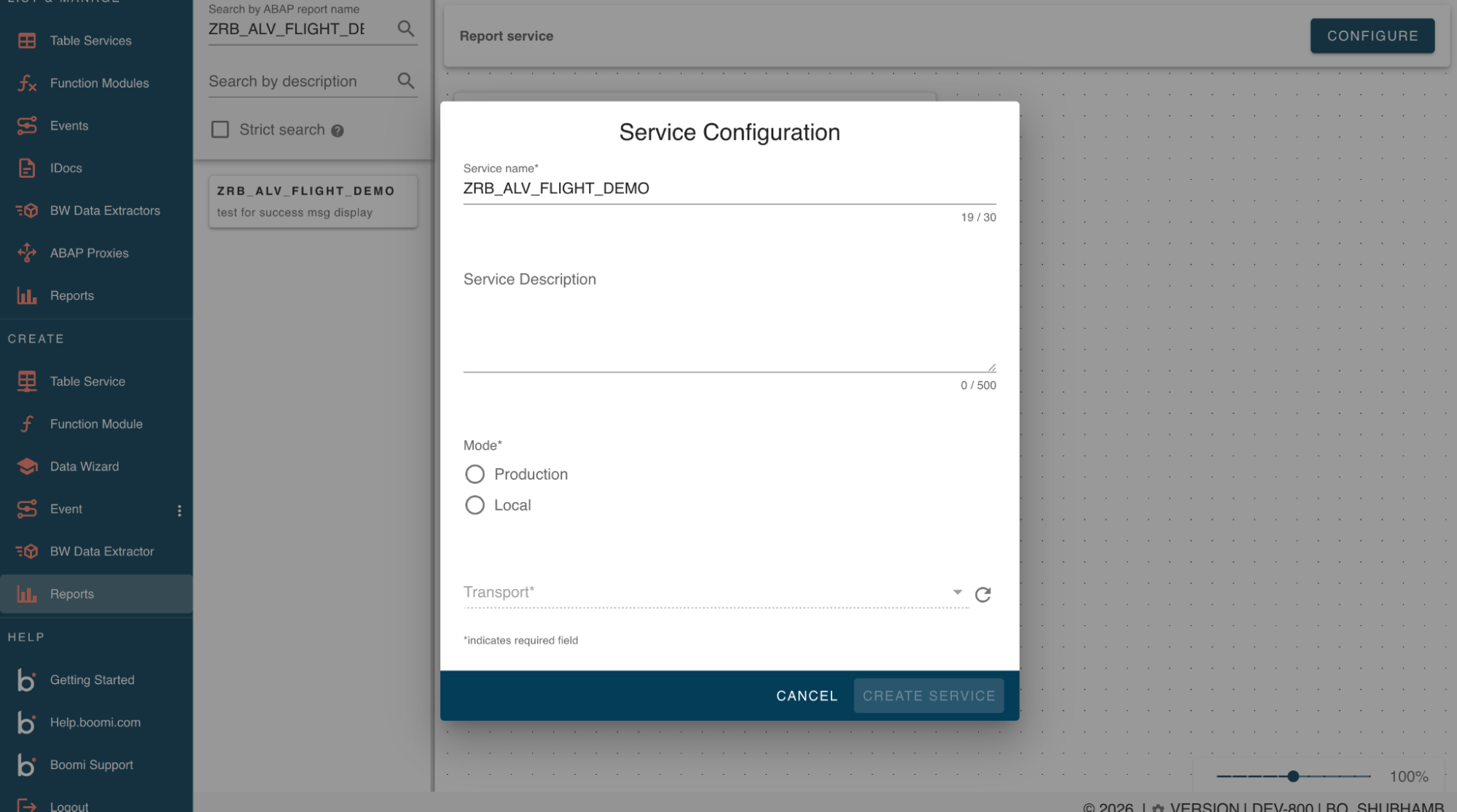
Click Create Service (or Update Service when editing an existing one). A success message confirms creation.
Once a service is created, it appears in the list of reports on the List and Manage page. From there, you can open any service to view or update its configuration.
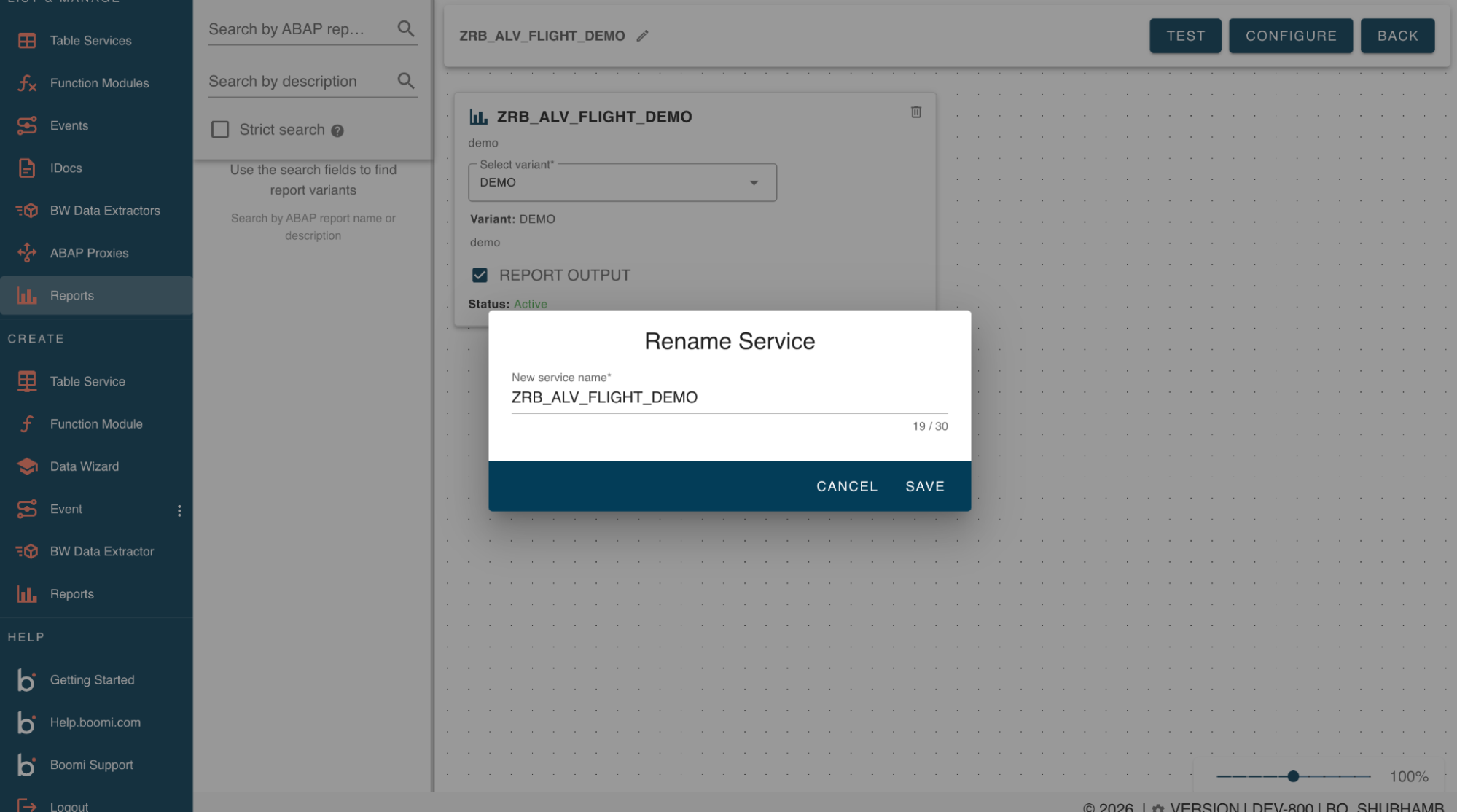
For a configured service, click the pencil icon next to the service name in the toolbar to open the Rename Service dialog. Enter a new, validated name and save.
Testing a service
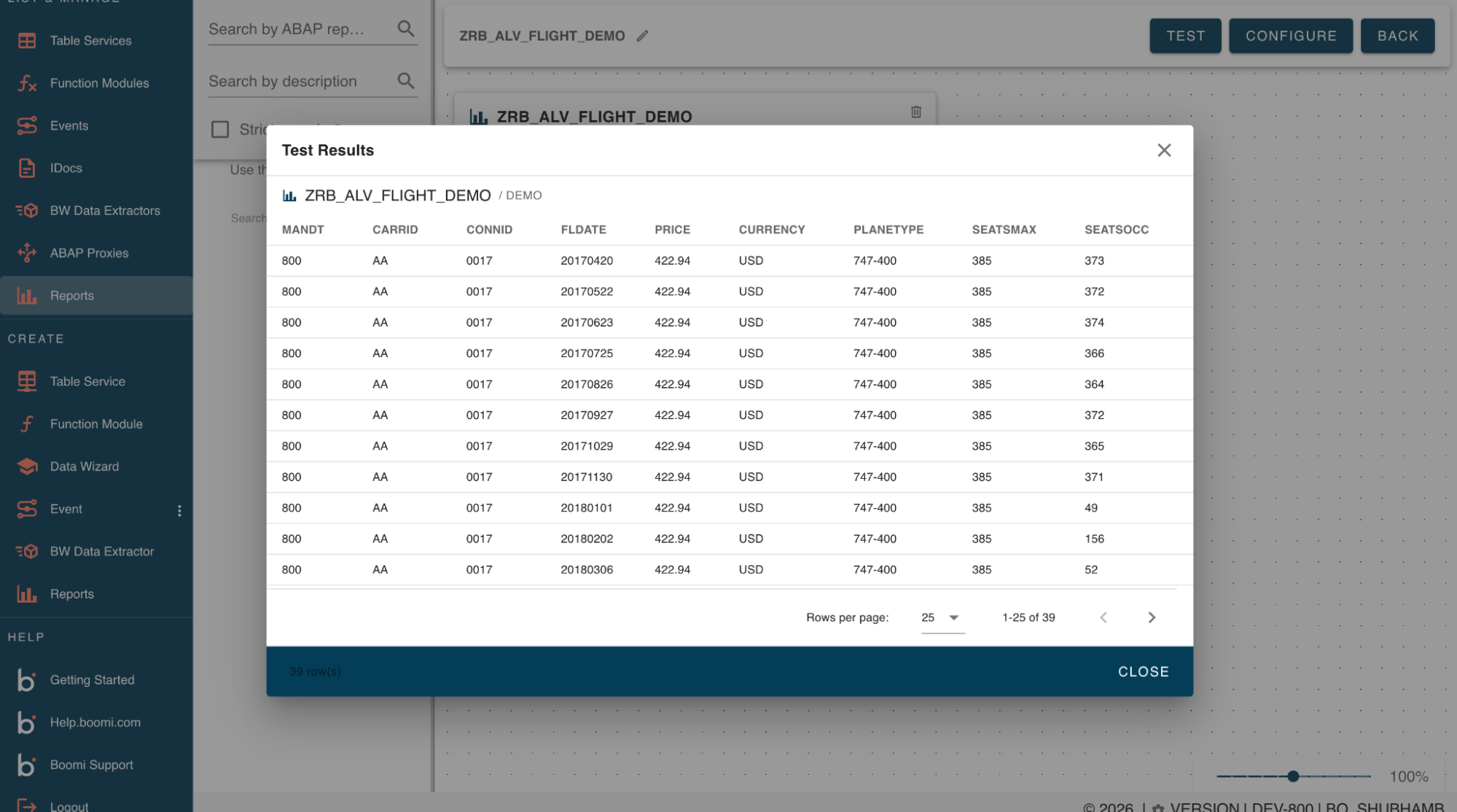
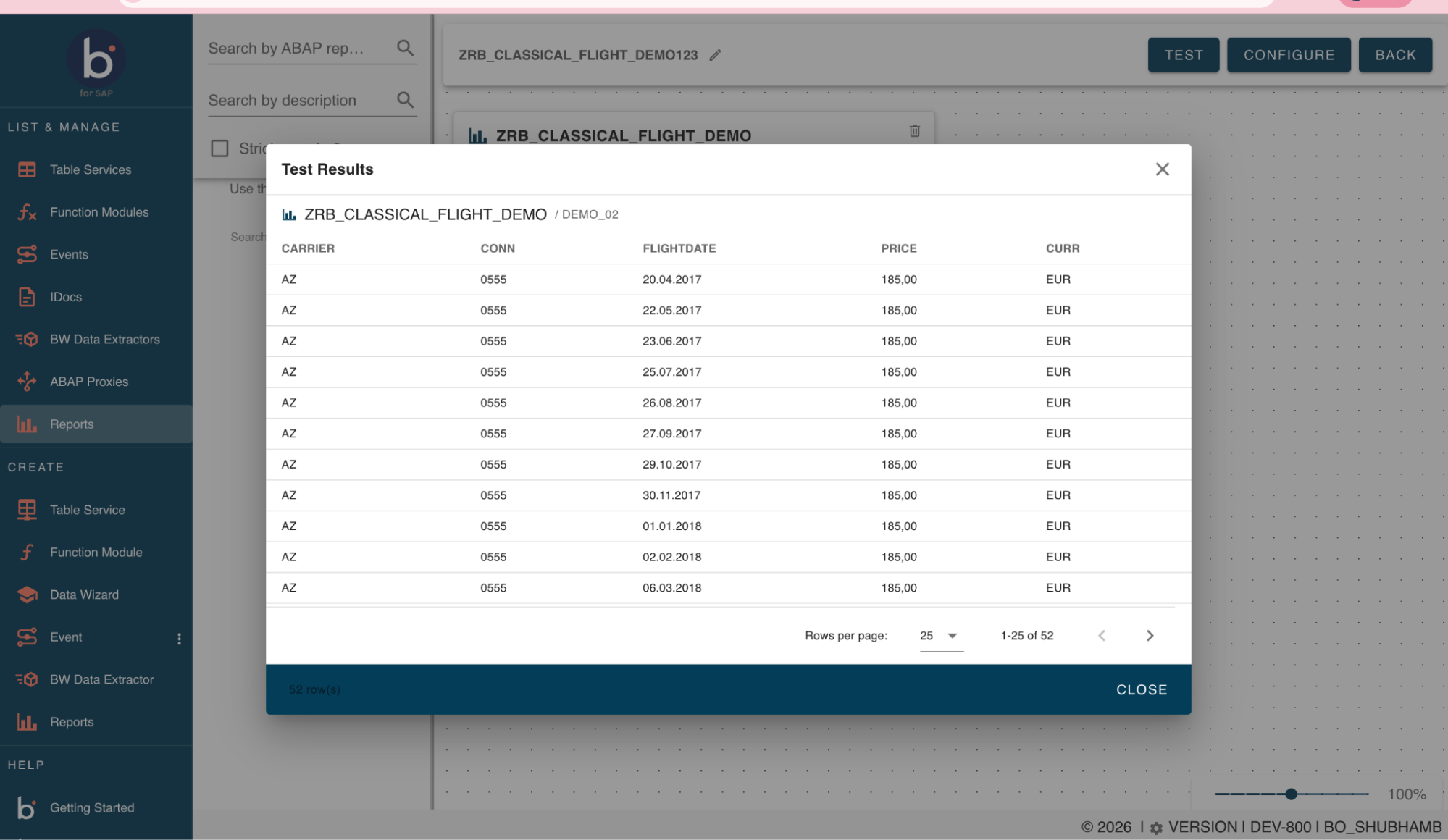
With a configured (Active) service, click TEST. The Test Results modal opens and executes the report. By default, the Classical Report Output checkbox on the report card is cleared, and results are parsed into named columns based on the report's output structure.
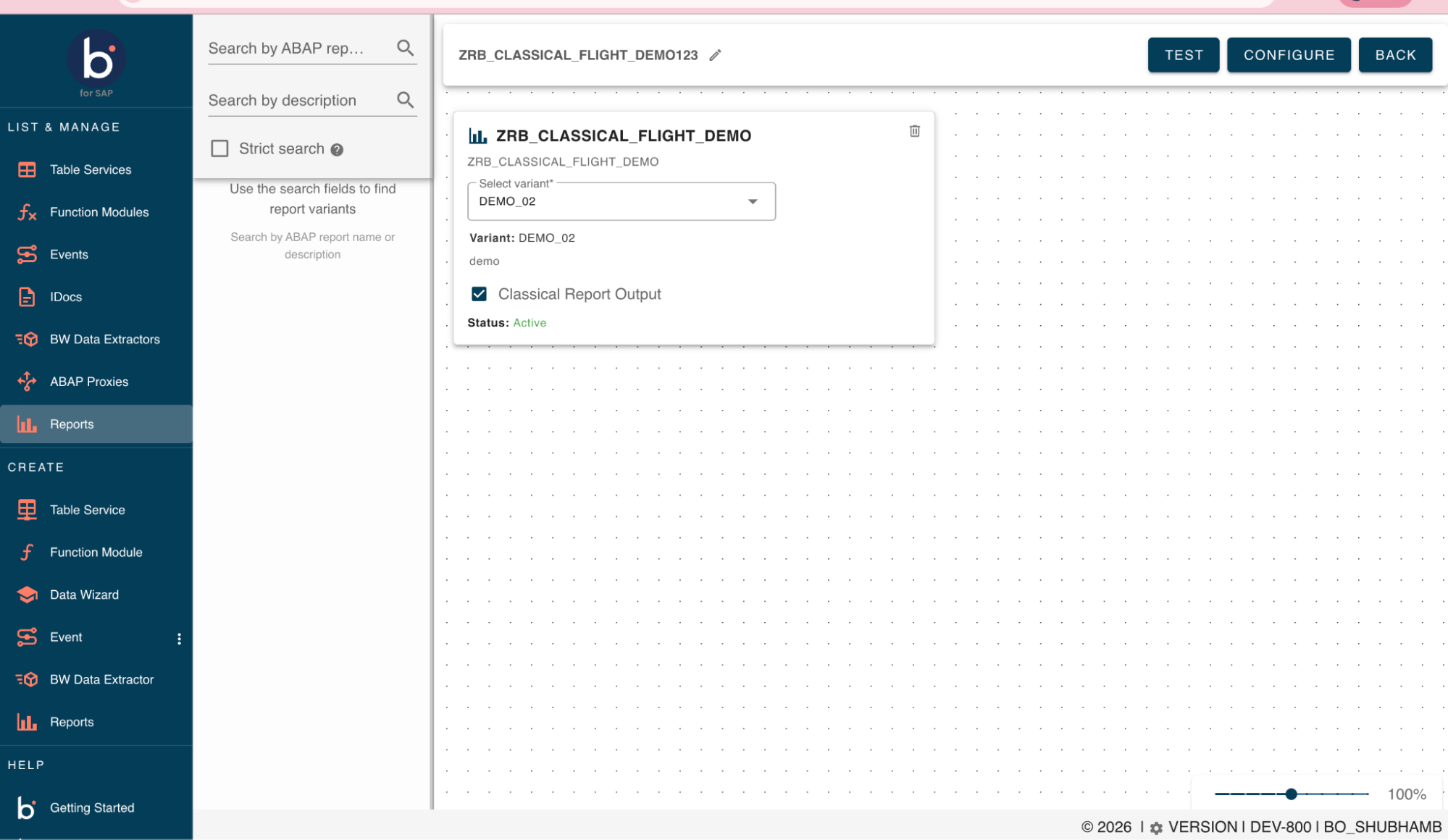
Some reports produce classical list output (WRITE statements) rather than a structured ALV grid. For these, select Classical Report Output on the card, then click Update Service and test again. Results then render as raw text lines under a single LINE column instead of parsed columns.
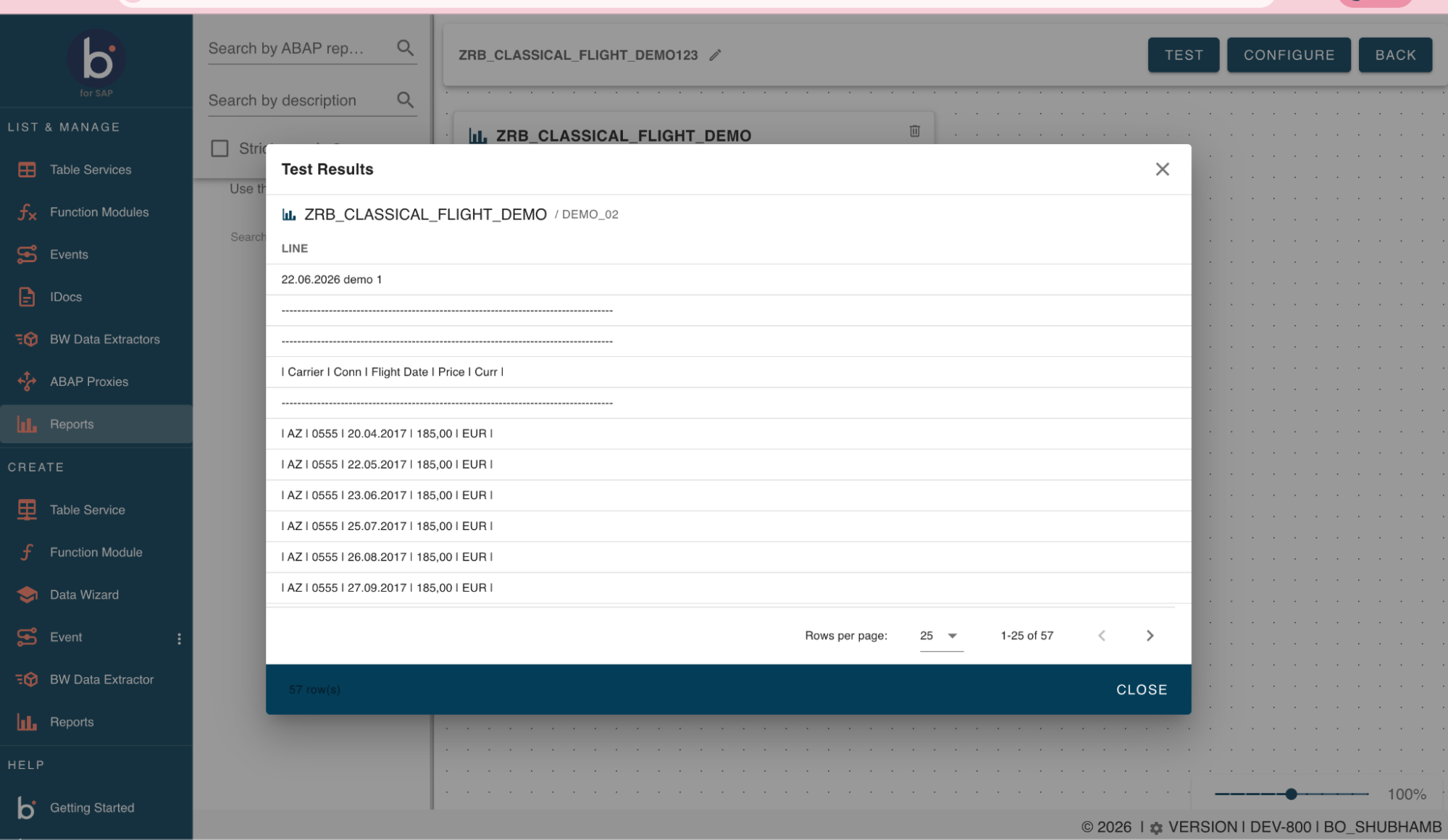
This option won't produce a correct result for every report — if a report's classical output doesn't parse as expected, leave the checkbox cleared and use the default structured view.
Testing via API
You can send a POST request to the API endpoint to test a configured service programmatically: https://{hostname}:{port}/zbx/rest/report/execute?sap-client={client number}.
Request body format
Provide the report service's name as REPORT_ID:
{
"REPORT_ID": "string"
}
Test Request Example
To execute a report service named TEST_01, send the following request body:
{
"REPORT_ID": "TEST_01"
}
SAMPLE PAYLOAD
{
"REPORT_ID": "TEST_01"
}
