User Space overview
The User Space portal enables you to browse a library of templatized integrations, configure and customize integrations and data mappings to fit your specific use cases, and run, schedule, install, and monitor those integrations. You can also view and install Recipes that are reusable templates designed to solve specific integration challenges and accelerate implementation time. Use the Switch to... icon in the top-right corner to toggle between light and dark viewing modes. You can also readily access the Spaces help documentation by clicking the Help Documentation icon.
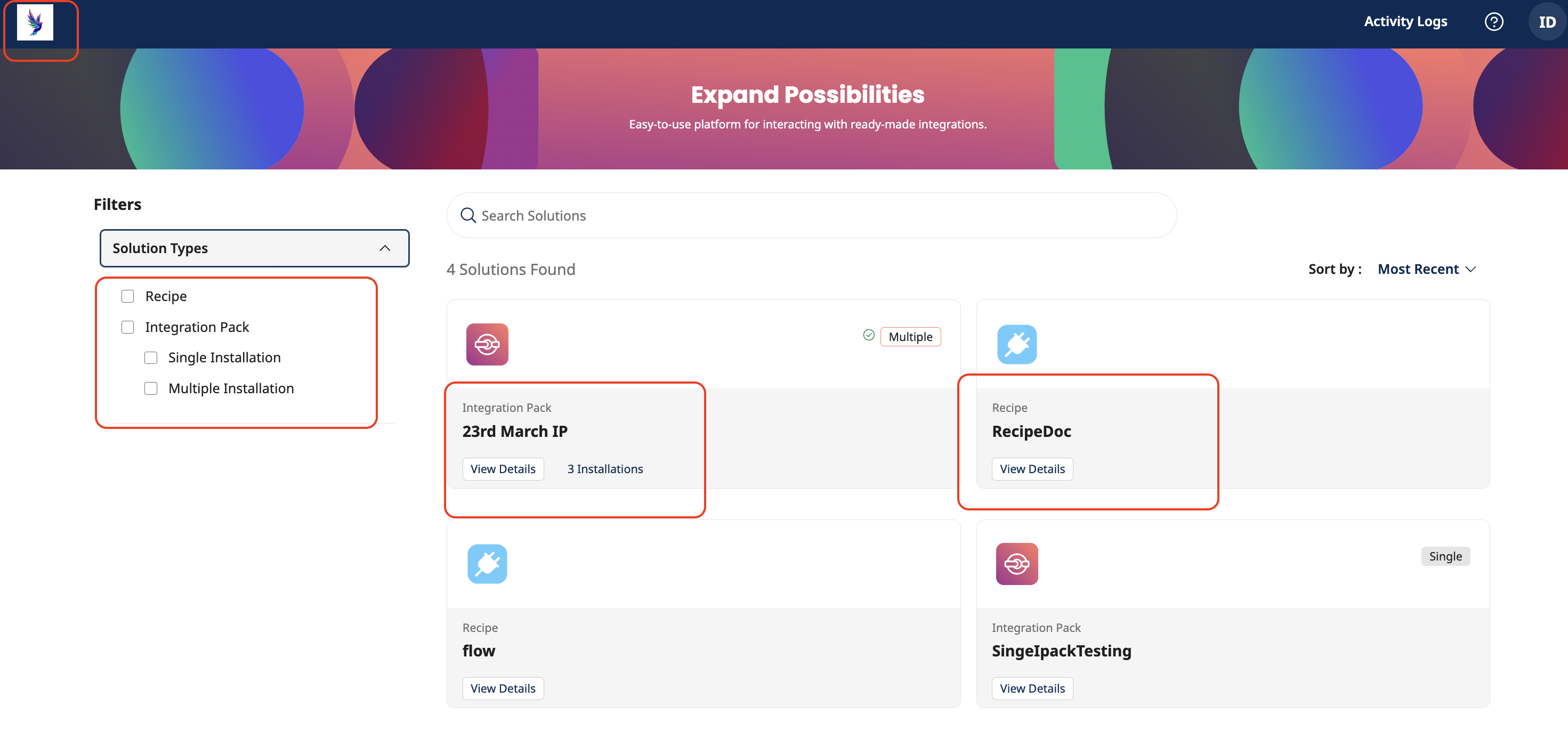
Depending on how your administrator has configured your access, you can access Spaces directly as a Boomi service or seamlessly from within your own application using an embedded view. Contact your administrator if you have any questions.
In the User Space, you can:
-
View Integration Pack listings
-
Filter Integration Packs by their Categories and Attributes
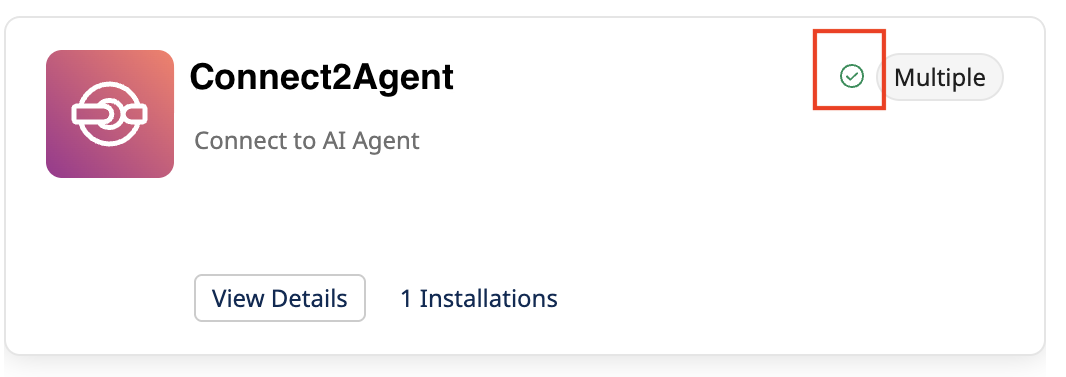
tipLook for the green checkmark to quickly identify integrations that are already installed.
-
-
Search within installed Integration Pack instances. Results show a unique name for each environment when an instance is installed to multiple environments.
-
View Integration Pack Details
- Install and Configure Integration
- Add Environments
- Configure Processes and Process Properties
- Configure Data Maps
- Uninstall Integration
- View supporting materials
- View installed instances
- Install and Configure Integration
-
Edit Integration
-
Schedule Integration
-
Run Integration
-
View Integration Process Report
-
View Recipe listings
- Filter Recipes by their Categories and Attributes
-
View Recipe details and supporting materials
-
Install Recipes
-
Open all assets installed as part of the Recipe in their source applications
-
Download supporting materials to understand how to use the Recipe
Users having accounts with Space privileges can access the Space allocated to them. You can sign in to the Space User portal using the Space URL shared by your admin.
Contact the Space Admin to get the Spaces URL associated with a Space.
Accessing the user Space in Boomi Platform
To access the user Space:
-
Sign in to Spaces using the Space URL shared by your administrator. (Eg URL: https://space.boomi.com?guid=e26c1a5a-d3ac-4286-8226-2ec1c)
-
Select an account to sign into the Space.
The account page displays a list of accounts included in the Account group of the Space. If your Account group has only one child account, you are directly navigated to the Spaces Browse page.
By default, the Select Account page displays a maximum of ten child accounts. If the Space account group includes more than ten accounts, use the search bar to find the account.
-
After you select your account, the listing page displays all integration packs and recipes available for your account in the Space.
-
Use the filters on the left pane to conditionally narrow your view and view Integration Packs and Recipes that match your selected Categories and Attributes.
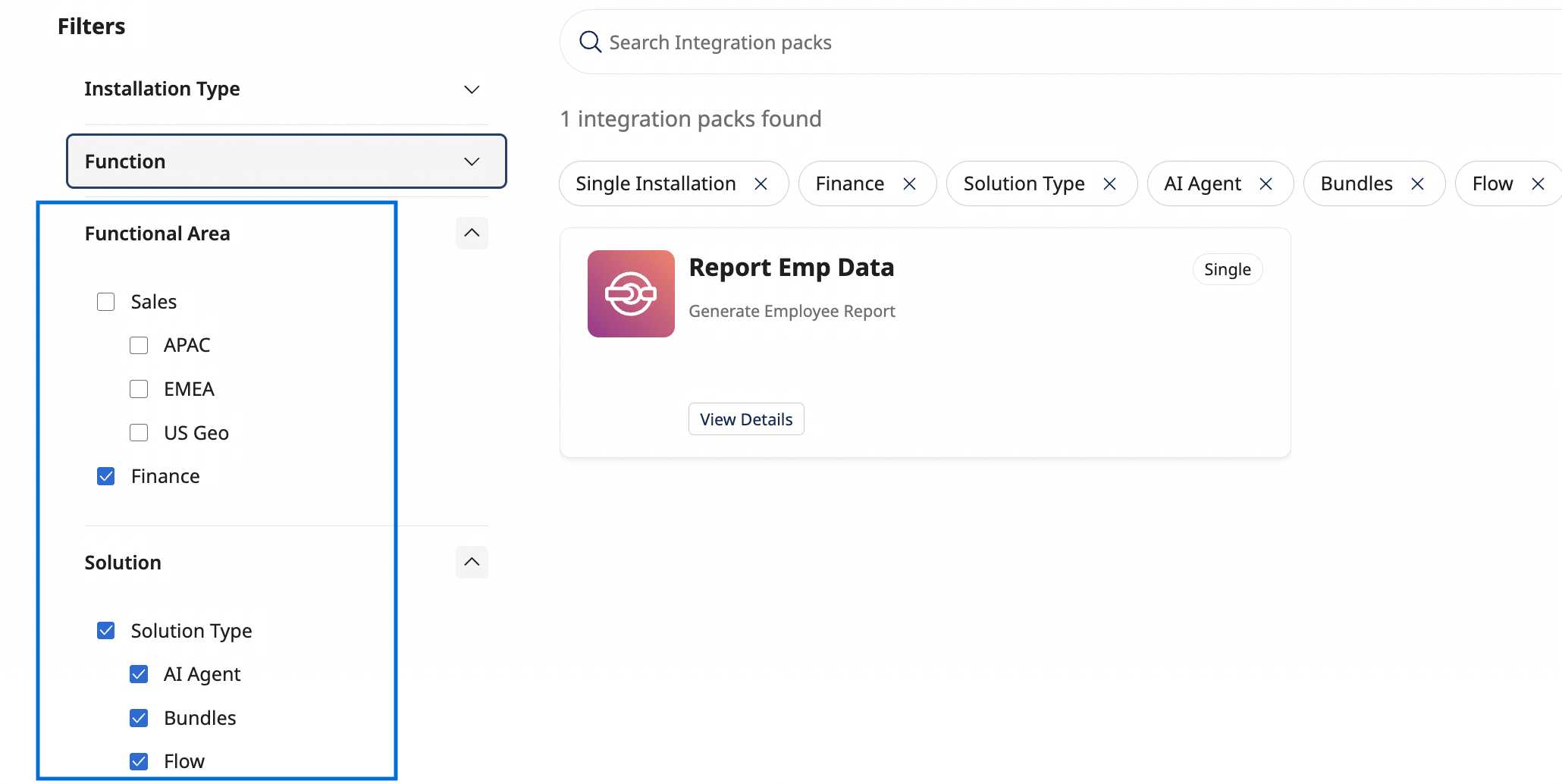
- For Integration Packs, the listing view displays single-install and multi-install categorizations, by default.
- The filter pane on the left displays Categories and Attributes, as defined by your administrator.
On the listing page, Integration Packs are labeled Multiple for multi-install versions, and Single for single-install versions. You can View Details of the Integration Packs, Install them, and after installation Schedule/Run them, as needed.
The Integration Packs and Recipes available to you in the User Space portal are determined by the access your Admin has configured in the Admin Space for the relevant account groups.
Accessing embedded user Spaces
This section applies only if your organization’s Space administrator has granted you access to embedded Spaces in your application.
To access user Space from your application:
- Log in to your application using your company credentials.
- Navigate to the Spaces section (as configured by your administrator).
You are able to view your user Space in your application, without requiring separate authentication through the Boomi platform.
The rest of your user experience remains the same as standard Boomi Platform Space users.
Choosing your default Space and switching Spaces
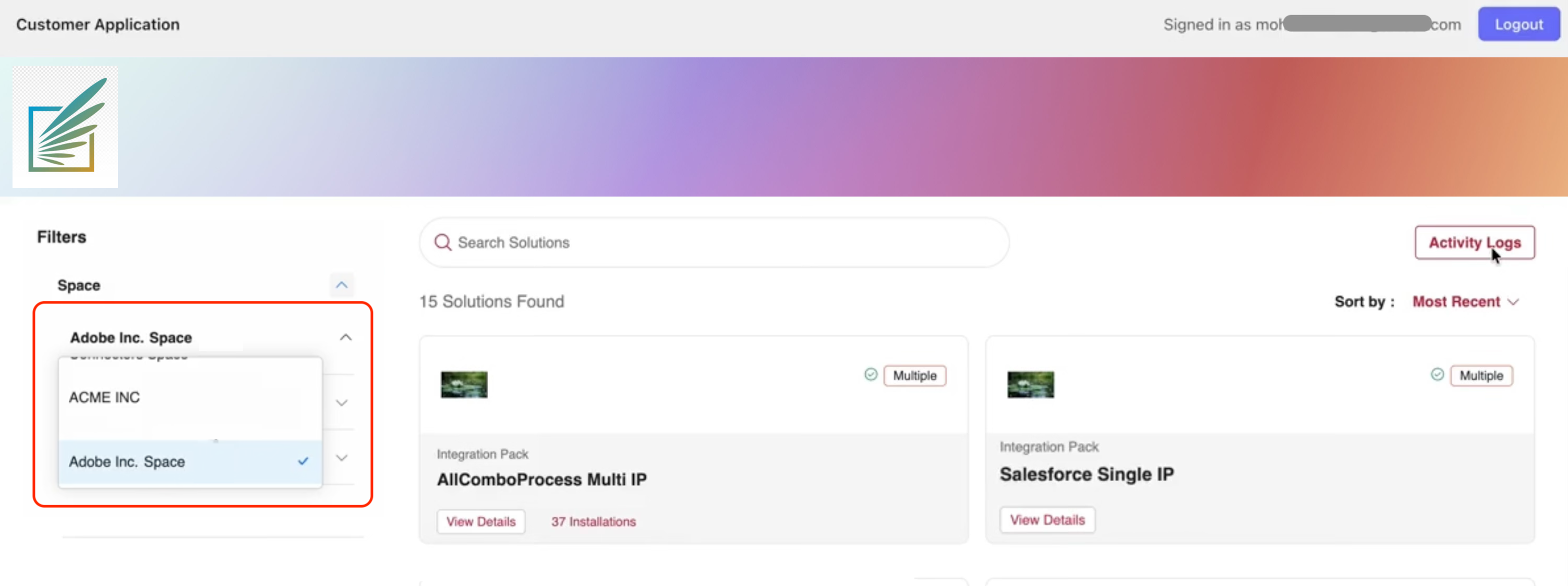
As an embedded Spaces user, you can select a Space you want to view and also switch between Spaces using the dropdown menu on your home page.
When you start a new session, the application automatically defaults to your last selected space.