Embedding a Space
- This section applies only to OEM customers who have opted for embedded Spaces within their applications.
- Embedding Spaces into your application requires calling a dedicated endpoint with required input parameters. For details on configuring Spaces, refer to Invoking the Embed API.
Using the Embeddable Settings, you can configure and edit relevant settings for your embedded Spaces.
Configuring your company profile
To add details of your company and specifics of embed configuration:
-
Log in to Boomi Enterprise Platform.
-
In the Services menu, go to Labs > Marketplace Publisher.
-
Click Embeddable Settings.
-
In the Onboarding tab, provide the following details of your organization:
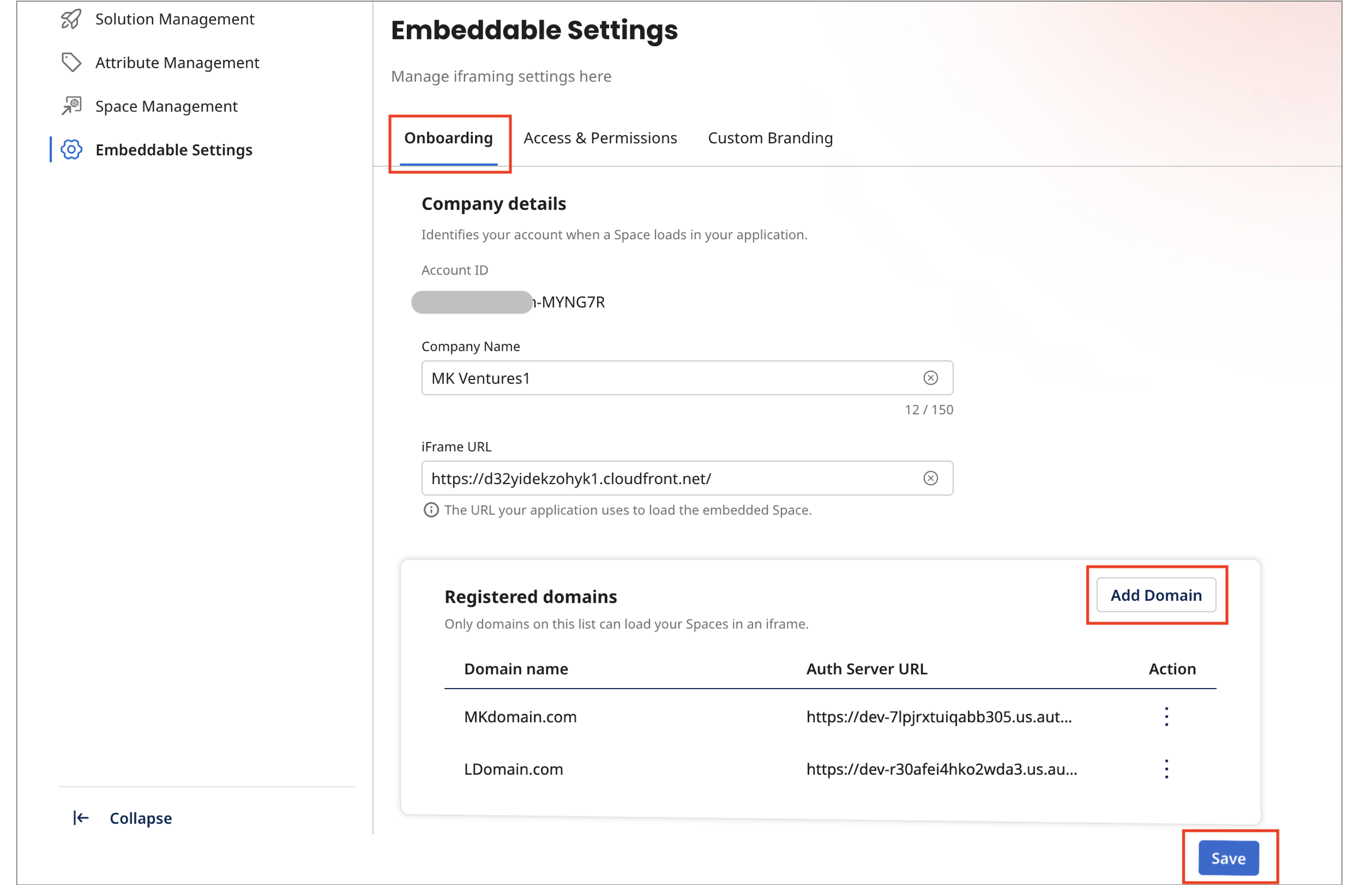
- Account ID: Your company's account id (read only).
- Company Name.
- iFrame URL: The URL used by your application to load embedded Spaces.
- Registered domains: Only allowed domains added in this section can embed your Spaces in an iFrame.
Click Add Domain. Specify the following and click Add:
- The Domain Name
- The Auth Server URL that your application will use to authenticate embedded requests.
Repeat the above steps to add more allowed domains.
- Click the ellipsis under the Action column to either edit or delete the domain.
-
Click Save to persist your changes.
Clicking Add Domains and adding a domain entry does not save it automatically. You need to click Save to persist your changes.
Configuring embeddable settings
To configure user settings for your embedded Space:
-
Log in to Boomi Enterprise Platform.
-
In the Services menu, go to Labs > Marketplace Publisher.
-
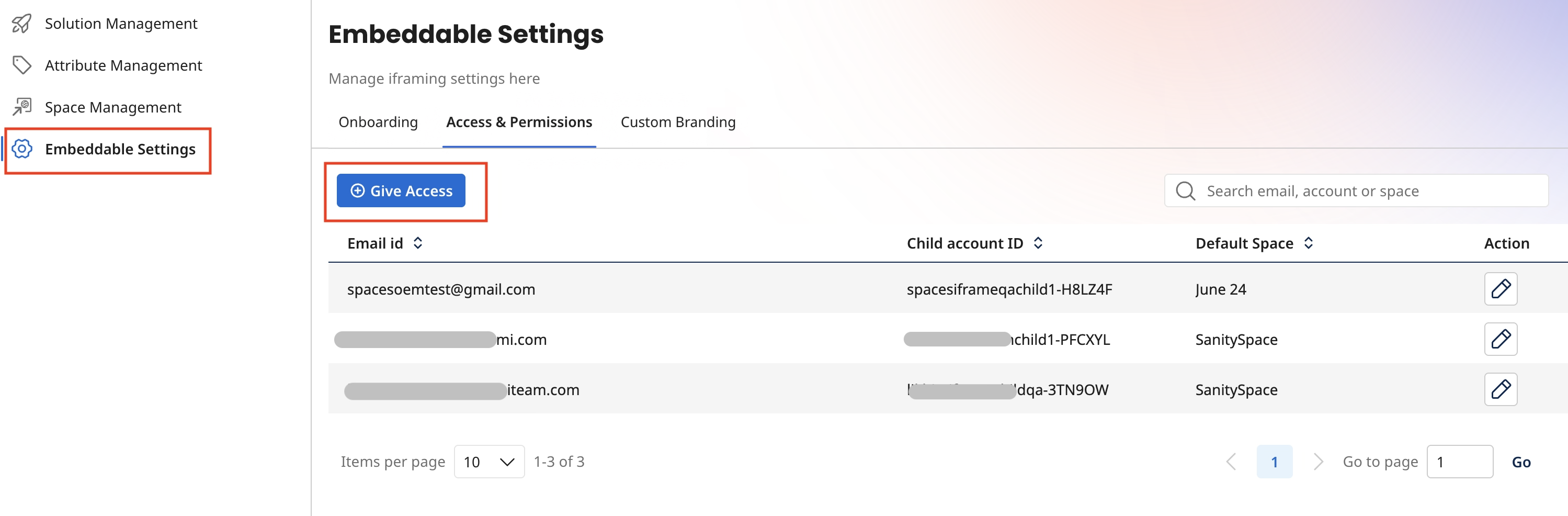
Click Embeddable Settings and go to the Access & Permissions tab.
noteYou must give access to all child accounts you want to configure with embedded Spaces in the Access & Permissions tab.
-
Click Give Access and enter the following details:
- Email Id of the child account.
importantEach child account must have a unique email id that is not shared with other child accounts.
- The Child Account ID in the required format.
- The API Token for the child account to access the embedded Space. For more information on generating an API token for a child account, refer to Generating API tokens.
-
Click Give Access.
You have granted the user access to Embedded Spaces.
Editing embeddable settings
To edit Embeddable Settings for your Space:
- Log in to Boomi Enterprise Platform.
- In the Services menu, go to Labs > Marketplace Publisher.
- Click Embeddable Settings. The Access & Permissions tab lists all child accounts configured with embeddable Spaces.
- In the Actions column, click the Edit icon for the user you want to update.
- Update any of the following information:
- API Token for this child account. For more information on generating an API token for a child account, refer to Generating API tokens.
- Default Space (the Space that opens by default for the user).
- Click Give Access.
You have updated the user's embeddable settings.
Customizing branding for your Spaces
If you are an organization using embedded Spaces within your application, you can use custom branding to personalize the visual appearance of Spaces to match your brand identity. As your organization's administrator, you can customize elements such as headers, landing pages, typography, buttons, links, tables, and forms, to create a seamless, cohesive experience for your users.
To customize your embedded Spaces experience:
-
Log in to Boomi Enterprise Platform.
-
In the Services menu, go to Labs > Marketplace Publisher.
-
Click Embeddable Settings.
-
Go to the Custom Branding tab.
-
You have options to customize the following settings:
-
BRAND ASSETS
- Logo - Your company's logo in PNG, JPG, or GIF formats. If no logo is uploaded, the Boomi Spaces logo is used in your user Space. Recommended dimensions are 128 × 128 px.
- Banner Image - The image that forms the header banner for the user Space in PNG or JPG formats. File size must be lesser that 1 MB. Recommended dimensions are 1440px x 150px.
- Banner Title.
- Banner Subtitle.
- Banner Text Color.
-
THEME & APPEARANCE for the user Space.
- Color themes.
- Font family.
-
-
Based on your customization inputs on the left pane, a live preview is generated on the right pane.
-
Tweak your inputs to suit your company's branding requirements. You can either save your settings as draft or Publish to your Space. All users of this Space will see these custom branding updates within their embedded application.
Generating Platform API tokens
To generate an API token for your child account:
-
Log in to your Boomi Platform account.
-
Use the account switcher to switch to the child account for which you want to generate the API token.
-
Go to the Settings page for this account.
-
On the left pane, click Platform API Tokens under My User Settings.
-
Click Add New Token.
-
Enter a name for the API token and click Generate Token.
-
Click Copy To Clipboard & Close.
importantOnce created, API tokens cannot be accessed from the Platform API Tokens page. Make sure to copy the token after generation and store it securely for future use.
Repeat these steps to generate API tokens for any other child accounts.
