Sharing Integration assets with accounts
You can share assets like Integration processes, API Services, and Flow Services directly from the Integration Build page. When you click the Share icon, the system uses the Packaged Component of the Integration asset to create a Bundle and delivers it either directly to one or more target accounts, or through a public URL. You can also view a list of recently shared Integration assets to review the ones shared earlier and access them whenever required.
Sharing an Integration process
To share an Integration process (Packaged Component) with one or more accounts:
-
Launch the Integration service from the Boomi Platform.
-
Navigate to the Build page.
-
From the component listing pane on the left, open the process that you want to share.
The Integration Process canvas page opens.
-
Click the Share icon.
importantIf you are creating a new asset (process) to share, the Share icon appears only after you have saved the process.
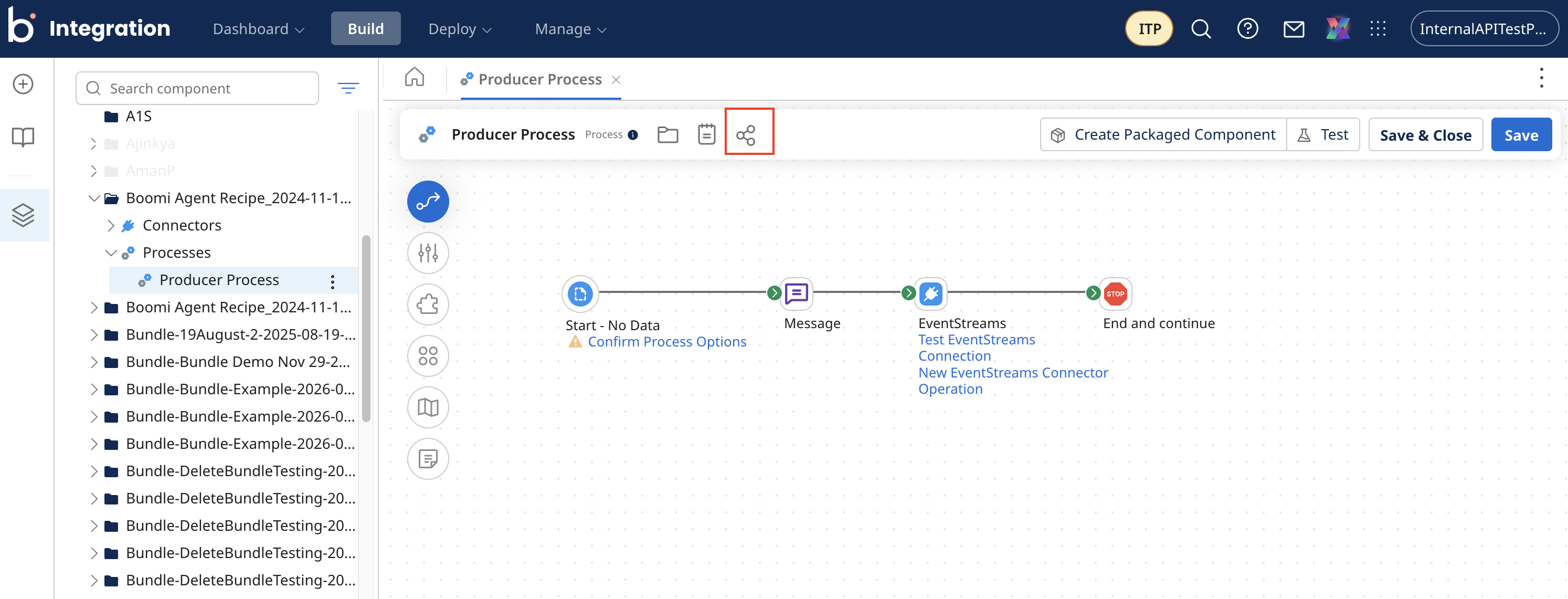
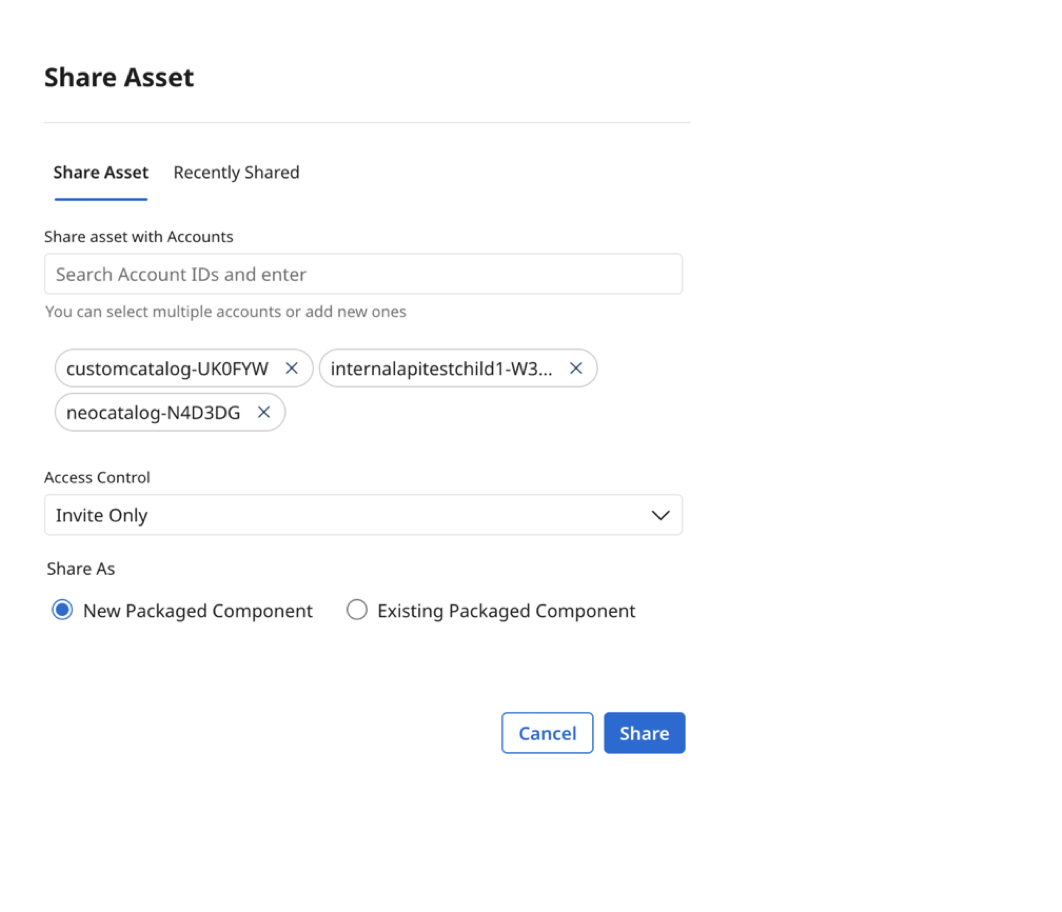
The Share Asset dialog window opens.
-
Select an account from the frequently shared list, search for a specific account, or enter a new account ID to share this asset with.
noteIf you have access to more than 2000 accounts, the accounts list will not show up for selection or search.
-
Select one of the following Access Control options:
- Invite Only: to share the asset with a specific group of users
- Anyone with Link: to share the asset publicly
-
Choose to create a new Packaged Component or share an existing version, if available. If sharing an existing version, select the version from the list.
-
Click Share. The system creates a bundle in the background with a shareable link.
-
Click the Open bundle in a new tab icon to review the Bundle in a new browser tab or copy the link to share the Bundle with the chosen recipients.
importantIf the asset contains restricted asset types such as certificates, the system automatically resets the bundle visibility from public to private. When this happens, an error message is displayed, and the asset is not shared. You must use account-to-account sharing for assets that include restricted types.
Sharing an API Service
-
Launch the Integration service from the Boomi Platform.
-
Navigate to the Build page.
-
From the component listing pane on the left, open the API Service that you want to share.
The API Service Configuration page opens.
-
Click the Share icon.
The Share Asset dialog window opens.
-
Follow steps 5 through 9 in the Sharing an Integration process section to share the API Service asset.
Sharing a Flow Service
-
Launch the Integration service from the Boomi Platform.
-
Navigate to the Build page.
-
From the component listing pane on the left, open the Flow Service that you want to share.
The Flow Service canvas page opens.
-
Click the Share icon.
The Share Asset dialog window opens.
-
Follow steps 5 through 9 in the Sharing an Integration process section to share the Flow Service asset.
Viewing recently shared assets
-
Click the Share icon in the Integration asset page.
The Share Asset dialog window opens.
-
Go to the Recently Shared tab to view a list of assets recently shared from this account.
-
Optional: Click the View details in a new tab icon to view the shared asset in the Bundles UI.
