Bundles user interface
To use the Bundles UI, you must have the “build” privilege set for your user on the account in AtomSphere.
Perform one of the following to access the Bundles UI:
- Log in to the Boomi Enterprise Platformand select Bundles from the Labs drop-down menu.
If you are unable to access the Bundles UI, check with your admin to set that privilege for you.
Understanding the Bundles UI
Using the Bundles UI, you can create, share, and manage your Bundles. The Create a new bundle button on the main page enables you to create your new Bundle. For more information on Bundle creation, check here.
You can perform other Bundle functionalities using the My Bundles, Shared, Viewed, and Installed tabs.
The Search bar on each tab enables you to search for Bundles using a keyword for the Bundle name and description. It searches across all the pages, and the Bundle table is re-loaded with the search results.
Using the pagination option below each table, you can select the number of items to be displayed on each page, as 10, 20, or 50, for managing data viewing.
My Bundles tab
The My Bundles tab displays the list of Bundles created by all users of the current account. You can sort the My Bundles table using the Bundle name or Updated date. The default sorting order is to list Bundles based on their updated date, sorted in descending order.
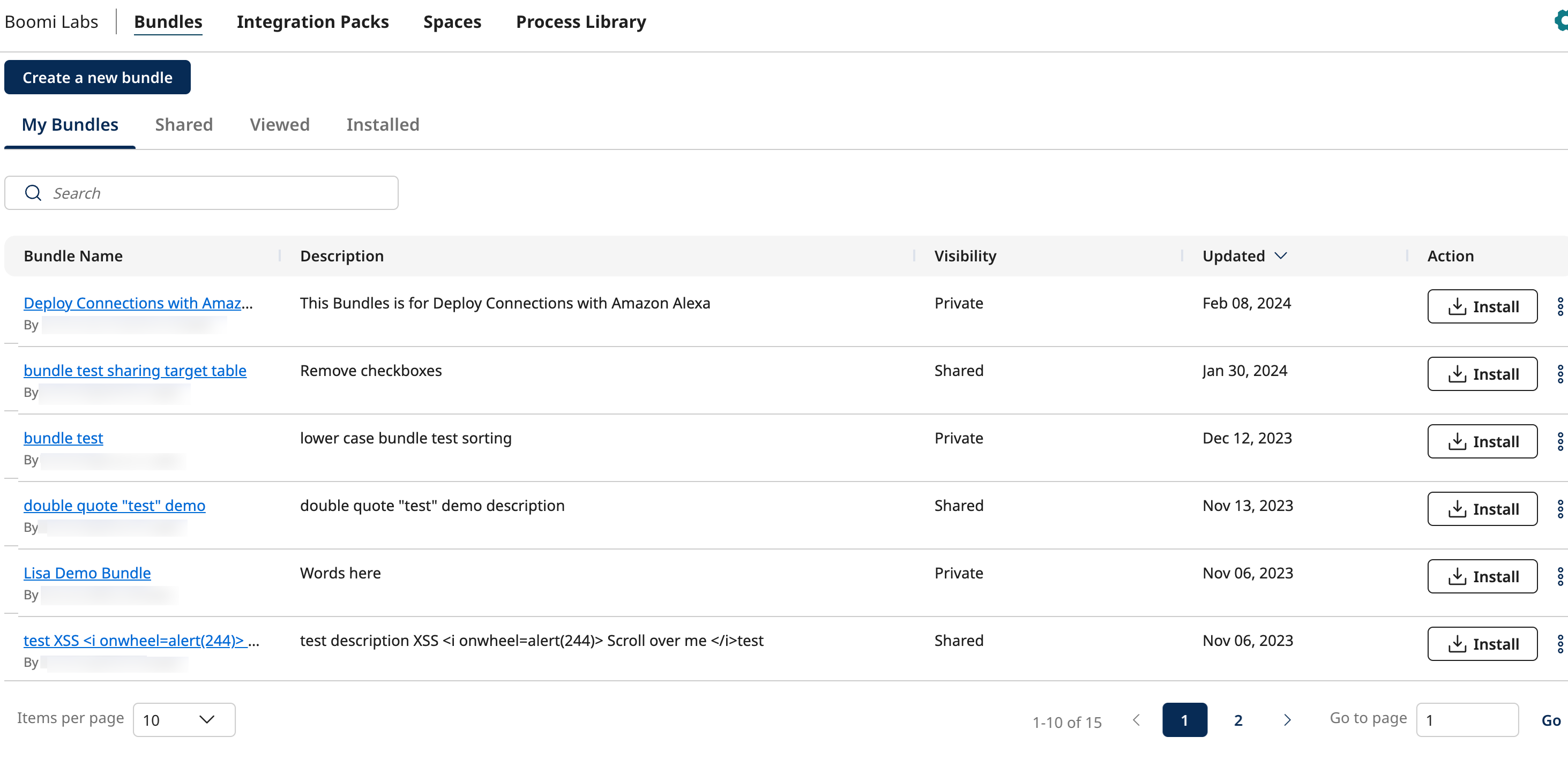
You can view the following information for each Bundle listed on this page.
| Parameter | Description |
|---|---|
| Bundle Name | Name of the Bundle. Below the Bundle name, displays the email address of the user who created the Bundle. |
| Description | Description of the Bundle. |
| Updated | The date on which the Bundle was last updated. |
| Install | Option to install the Bundle. For more information on installation, check here. |
| Share | Option to share the Bundle. To access this option, click the ellipsis at the end of the row to expand the menu. For more information, check here. |
| Delete | Option to delete the Bundle. To access this option, click the ellipsis at the end of the row to expand the menu. For more information, check here. |
Shared tab
The Shared tab displays all the Bundles shared with the account. You can install any Bundle listed in the Shared tab.
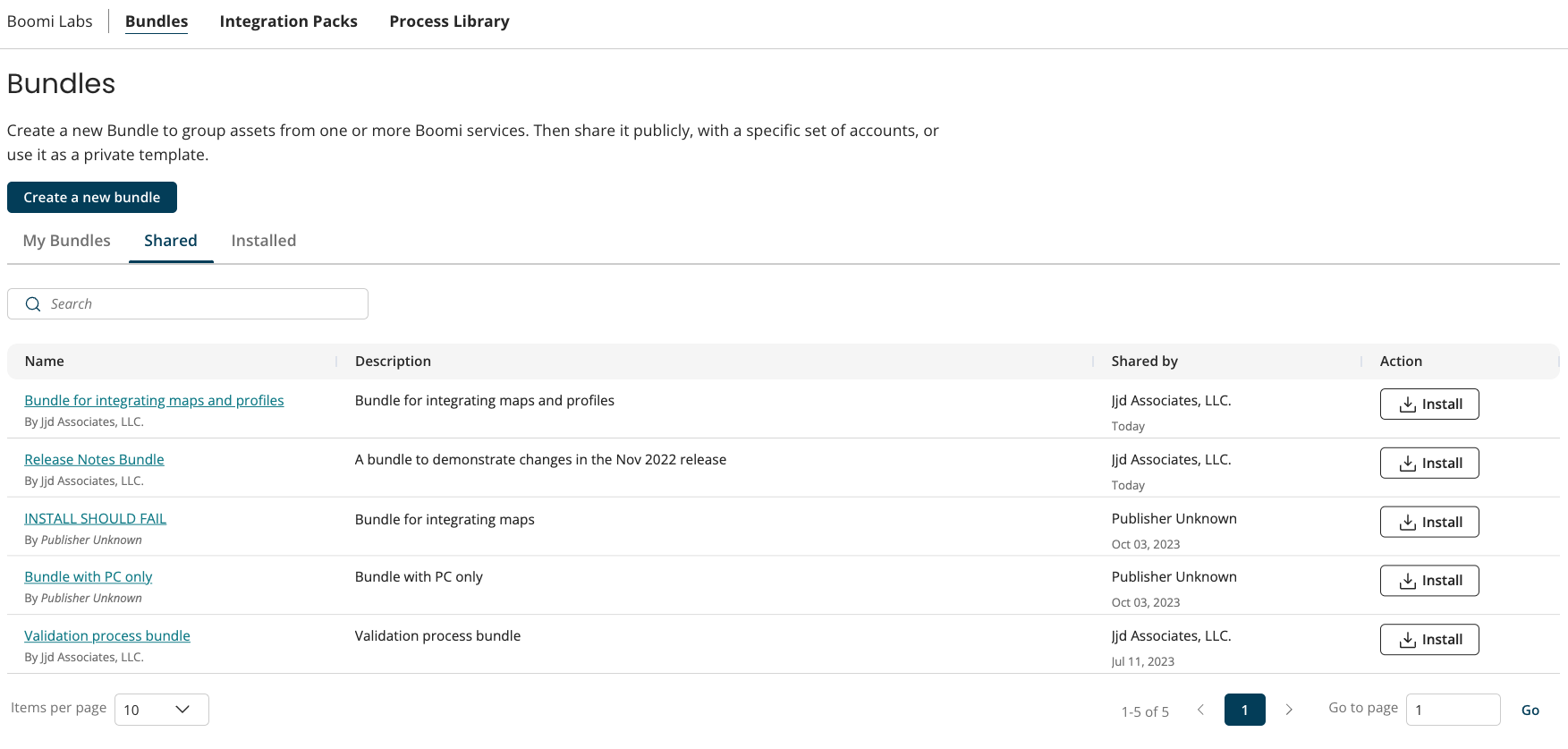
You can view the following information for each Bundle listed on this page.
| Parameter | Description |
|---|---|
| Name | Name of the shared Bundle. You can view the publisher name displayed below the Bundle name. |
| Description | Description of the shared Bundle. |
| Shared By | Displays the publisher name of the account that shared the Bundle. The column also displays the date on which the Bundle was shared. |
| Action | Option to install the Bundle. For more information on installation, check here. |
Viewed tab
The Viewed tab displays all the previously viewed Bundles in a table. You can sort the Viewed Bundles table using Bundle name or viewed date. By default, the table sorts Bundles by activity, placing the most recently viewed Bundle at the top. You cannot see viewed Bundles that have been deleted from the account by the Bundle owner.
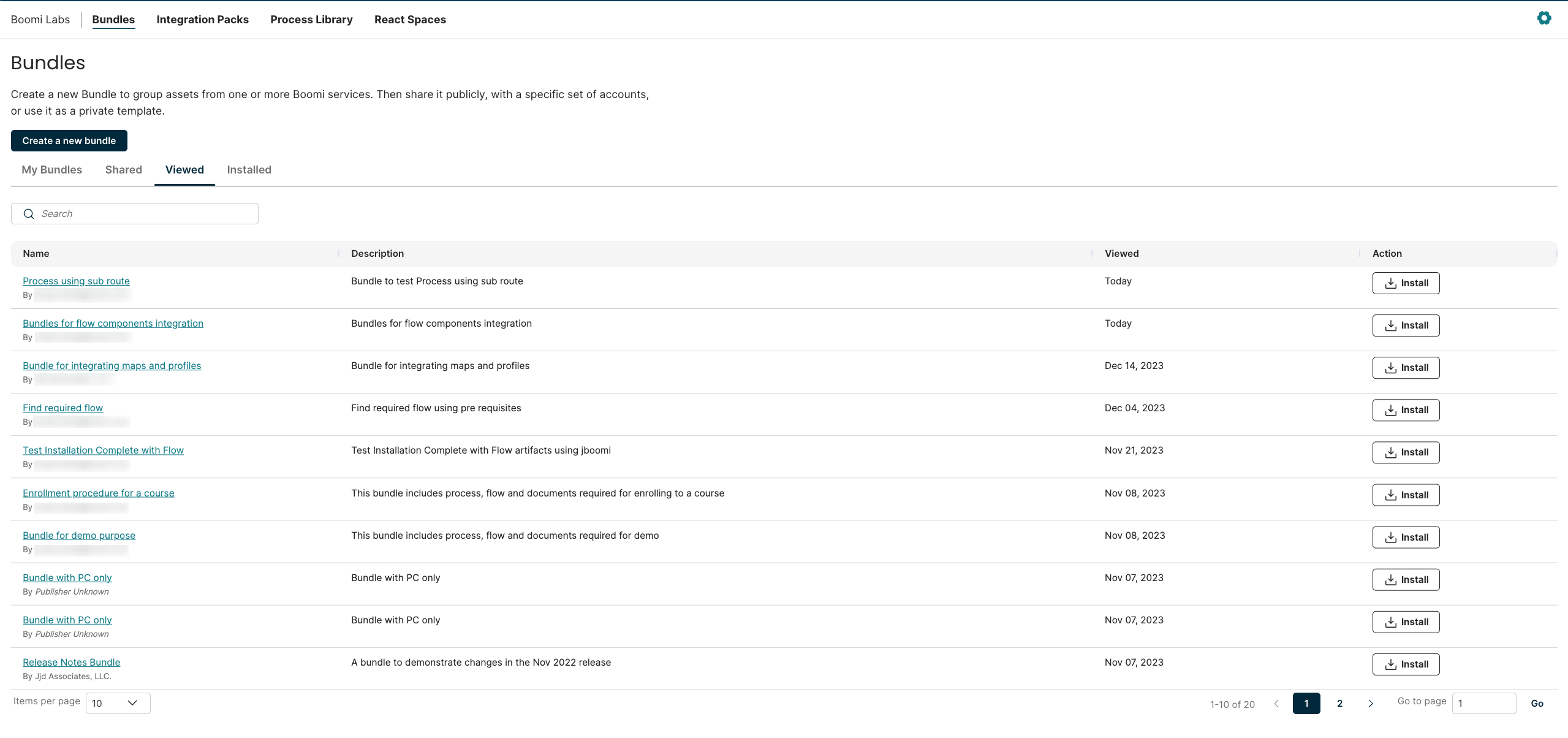
You can view the following information for each Bundle listed on this page.
| Parameter | Description |
|---|---|
| Name | Name of the viewed Bundle. Click the Bundle name to navigate to the Bundle details page. |
| Description | Description of the viewed Bundle. |
| Viewed | Displays the last viewed date of a Bundle. |
| Action | Option to install the Bundle. For more information on installation, check here. |
Installed tab
The Installed tab displays the list of Bundles installed by the logged-in user. You can also view the Bundles deleted from the account in this list. If a Bundle is deleted after installation, the system displays the Bundle name captured at the time of install. If the bundle exists, you will see the latest updated Bundle name from the Bundle database. Use the table headers to sort the list by Bundle name or installation date.
You can view up to 1000 of your most recent Bundle installations in the Installed tab.
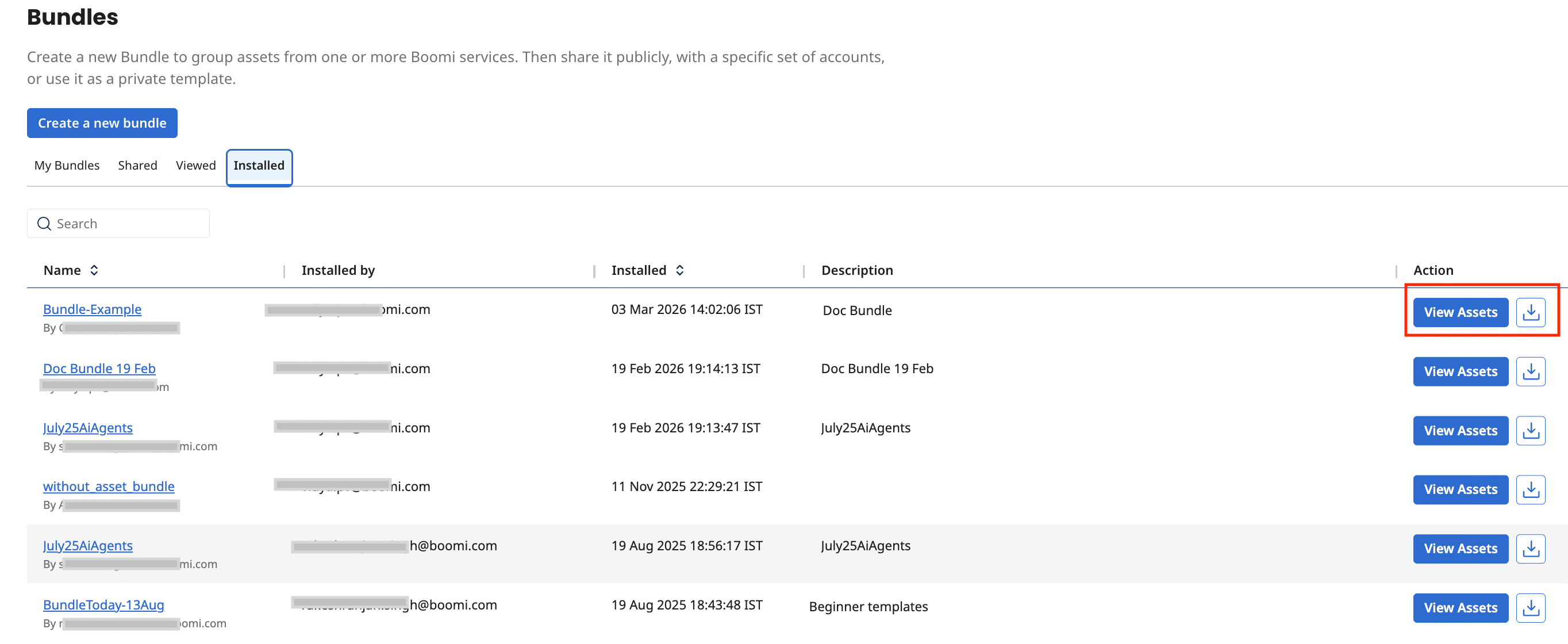
Each Bundle listing includes the following information:
| Parameter | Description |
|---|---|
| Name | Name of the installed Bundle. If your Account owns the Bundle, you will see the email address of the user who created the Bundle, below the Bundle name. If the Bundle is shared with this account, you will see the publisher name of the account that created the Bundle. |
| Installed by | Displays the email address of the user that installed the Bundle within your account. |
| Installed | Date on which the Bundle was installed. |
| Description | This field shows the Bundle description or displays 'Bundle deleted' if the Bundle is no longer available. |
| Action | Options to view the assets in the Bundle or install the Bundle. Install option is not available for deleted Bundles. |
Viewing assets
To view assets of an installed Bundle, click the View Assets button. The Installed Assets side pane listing all the component assets opens.
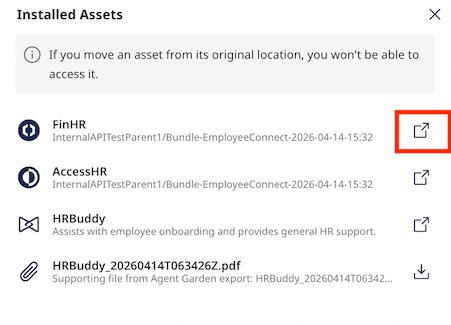
Use the View installed location icon to view the individual assets in a new browser tab:
- Integration - opens in the Integration canvas page
- API Service - launches in the API Service Configuration page in Integration
- AI Agent - opens in the Agent Garden page
- Flow - opens in the Flow application
- Custom Assets - can be downloaded
If an asset is moved from its original location, you will not be able to access it.
