Managing attached policy templates
On the Endpoint Policies page, you can view, override, replace, or delete an existing Attached or Overridden policy template.
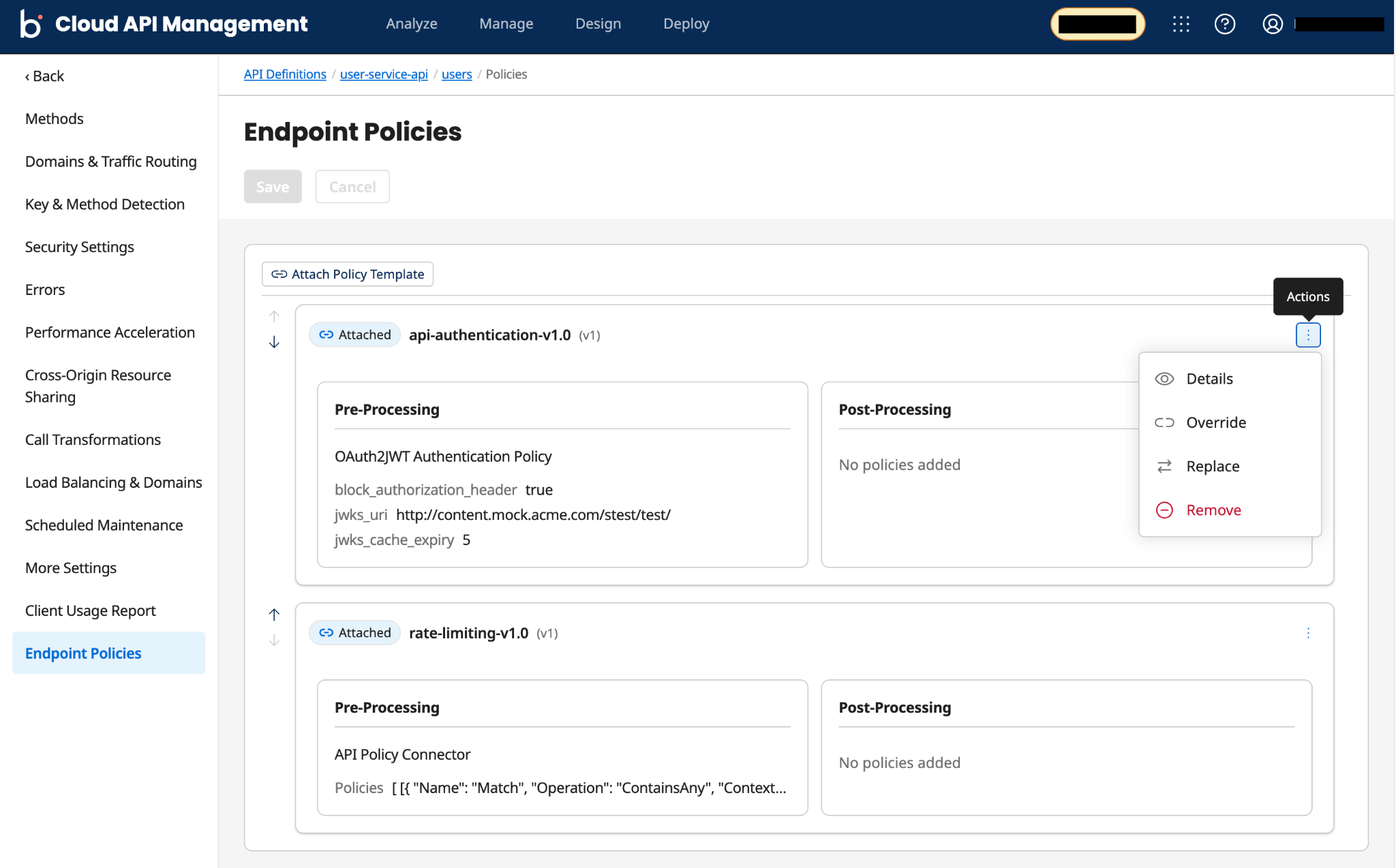
You can open the Endpoint Policies page in either of the following ways:
-
Design > APIs
-
Navigate to Design > APIs. This opens the Manage your APIs with API Definitions page.
-
In the Name column, click the API definition name link to open it. This opens the Endpoints page.
-
In the Name column, click the endpoint name link to open it. This opens the Methods page.
-
Navigate to Endpoint Policies.
-
-
Manage > Policy Templates
-
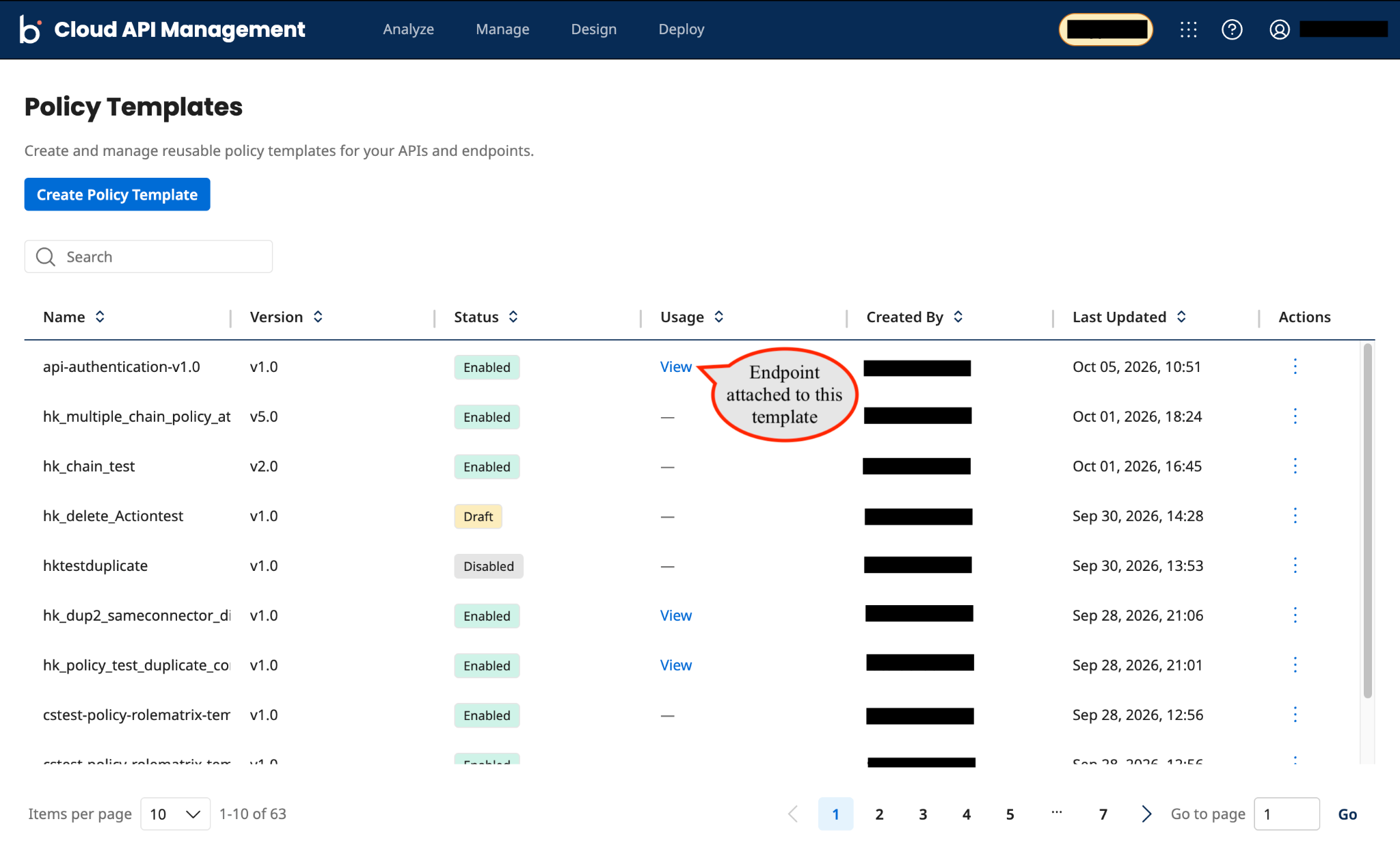
Navigate to Manage > Policy Templates, or select Policy Templates on the Get Started page. This opens the Policy Templates list page.
-
In the Usage column, click the View link next to the policy template row for which you want to open the attached policy template for one or more endpoints. This opens the selected policy template side panel, showing the number of endpoints it has inherited and the number of overridden templates.
You can also search for a policy template using the searchable attributes (refer to Searching and filtering in Control Center for more information) and sort the columns in ascending or descending order.
noteThe first View link under the Usage column on the Policy Templates list page is available only when a policy template is attached to at least one endpoint. If no endpoints are attached to a policy template, you see an em dash (—), indicating that no endpoint is linked to the template.
-
Use the horizontal scroll bar, or drag the edge of the side panel to widen it, until the Actions column is visible. Then click the second View link next to your endpoint row to open the Endpoint Policies page.
-
Related tasks
Perform the following actions (view, override, replace, or delete) from the Endpoint Policies page:
