How to connect to Apigee with a Service Account Key File
There are several authentication options when connecting to Apigee. Use this option when you want the simplest setup and are comfortable managing a downloaded service-account key file. This option works from any deployment location.
Prerequisites
-
Obtain GoogleKey Filename
-
Log into Google Cloud console.
-
Go to IAM & Admin → Service Accounts.
-
If necessary, create a new service account. Then click Manage Keys in the Actions menu for your service account.
-
Select ADD KEY → Create new key.
-
Choose JSON Format and save the generated key file.
-
-
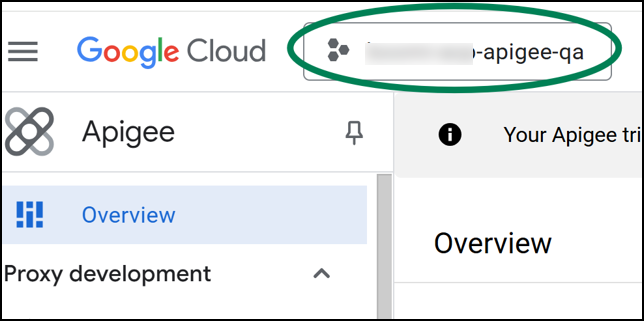
Obtain Apigee Organization Your Apigee Organization is shown in the top left after logging in to Apigee:
-
Obtain Apigee Developer name This is the username of a developer that you have created in Apigee (under Publish → Developers). All Apigee Apps created by Boomi API Control Plane will use this Developer.

Connect to Apigee
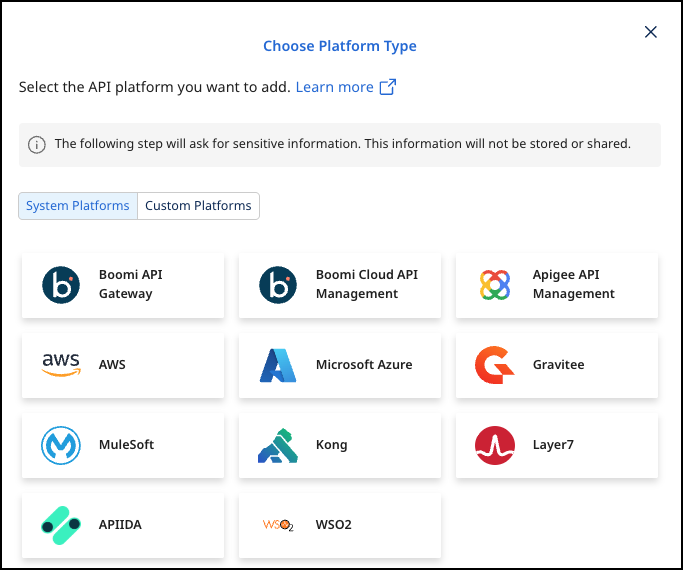
- In API Control Plane, select Environments > Register Gateway.
- Select Apigee API Management.
-
Add the following:
- Gateway Name
- Organization
- Authentication Method : Service account key file
- Service Account key file
- Developer
-
Select Next.
-
Select Download and Next. Your configuration file will download automatically.
Create an Agent as Intermediary
The following describes how to create a Docker container for the agent. It is described using a Docker compose file so that additional agents can be easily added to your docker stack later.
-
Docker Compose file options:
imageThe docker image of the API Control Plane Agentcontainer_nameYou can change the name of your Agent hereenvironmentbackendUrlThe agent will establish a web-socket to this URL and connect to your API Control Plane.agentTokengateway.typegateway.organizationgateway.googleKeyFilegateway.developergateway.gatewayEnvironments=test-env,prod-envList of environments
volumes
-
Run the following command:
docker compose up --pull always --detach
- The agent starts and connects automatically.
Check the Agent's Status
-
In API Control Plane, select Environments. Your agent is now connected to API Control Plane.
-
Click on the tile or the entry in the table to get more detailed information about the status of the connection. This can be very useful in case of an error.
