API Key Rotation Configuration
API key rotation can be defined at a global level or more granularly at the organization or API Product level in API Control Plane.
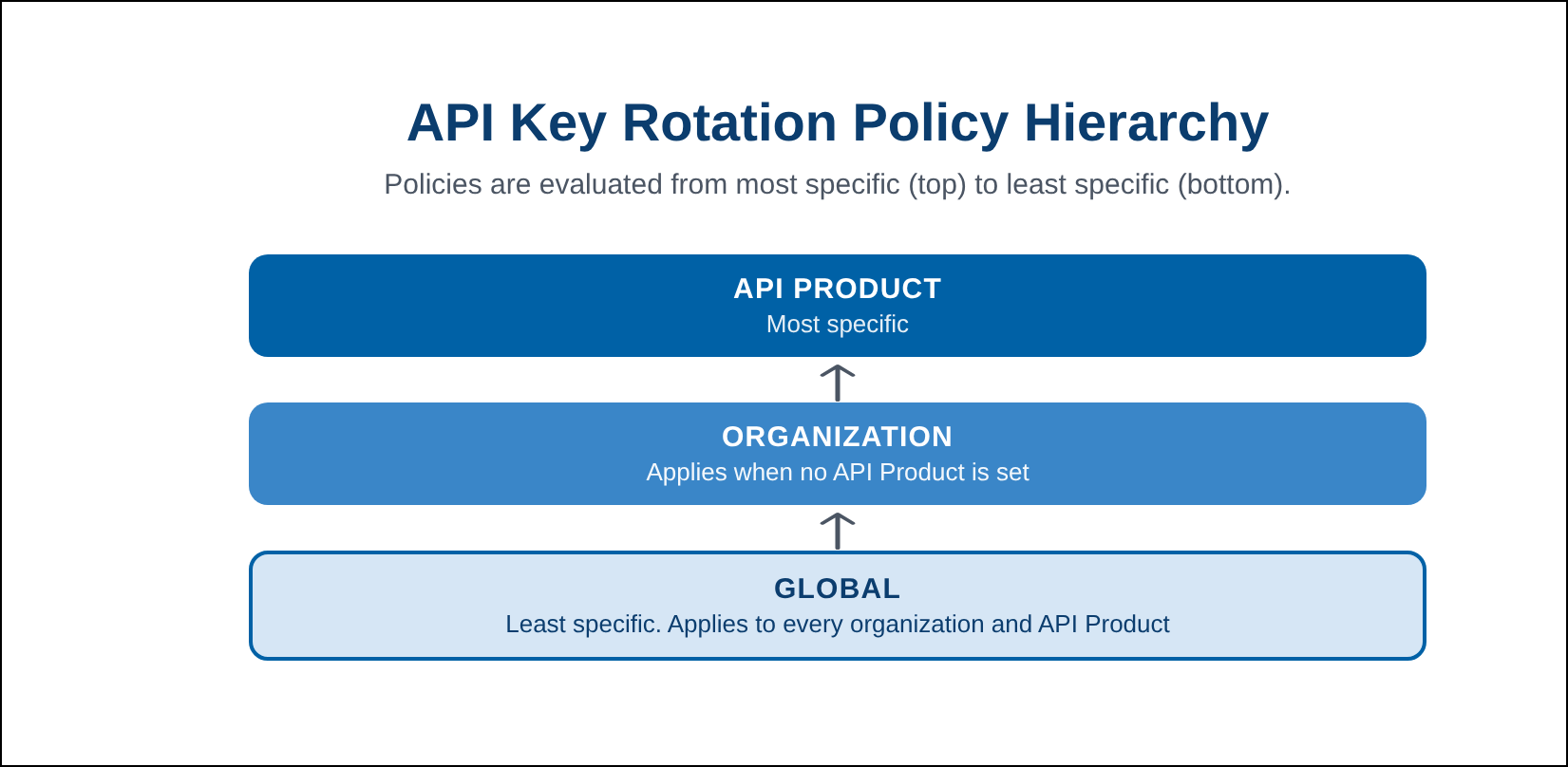
The default API key rotation policy must be enabled, as it is off by default. When enabled, default key expiration is after 90 days and reminders are sent via email 14, 7, 3, and 1 day before expiration, but can be configured to your requirements. The creation and expiration times applied to policy-based API keys is midnight UTC.
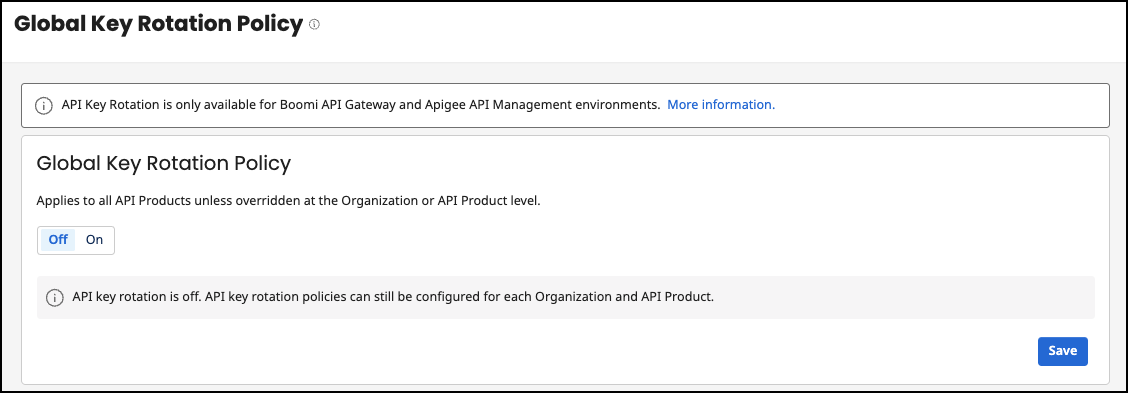
You can configure API key rotation for Boomi API gateways or Apigee environments, with support for additional gateways coming in future releases.
Set Global API Key policy
A global API policy is off by default, but you can enable it at Configuration > Key Rotation. The global policy applies to every organization and API product, unless defined at those levels.
API keys are rotated automatically based on the policy. A new key is created during the renewal window, which is the overlap window when the old key remains valid alongside the new one, until it expires. Email notifications are sent at the configured lead times.
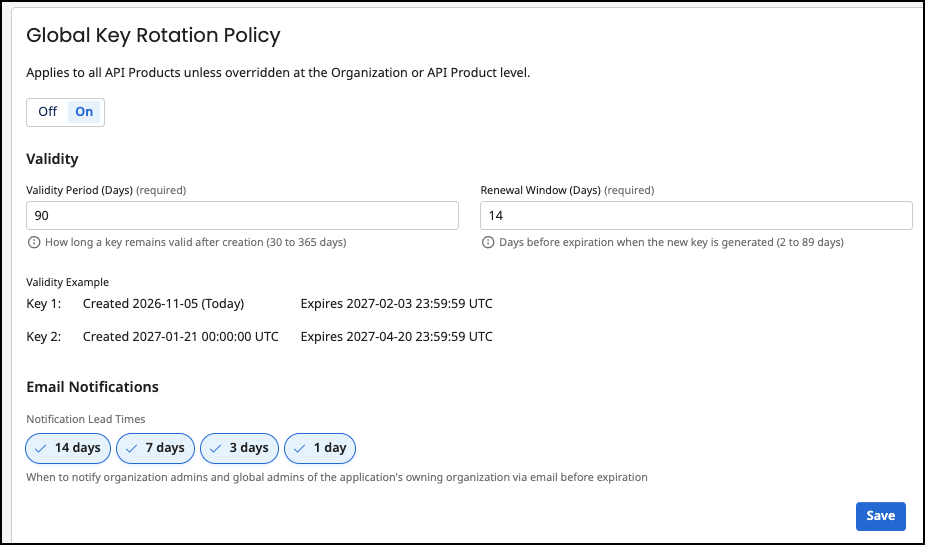
Follow these steps to set a global API key rotation policy:
- Go to Configuration > Key Rotation.
- Select On.
- In the Validity section, set the following:
- Validity Period (Days) - The number of days that an API key remains valid after creation.
- Renewal Window (Days) - The number of days before expiration that a new key is generated.
- Email Notifications - When to email the organization admins and global admins of the application's owning organization before key expiration. The default setting sends emails 14, 7, 3, and 1 days before expiration.
- Select Save.
Set API Key Policy by API product
You can configure the API key policy for an API product on a Boomi API Gateway or Apigee gateway. Setting it at this level overrides the global or default API key rotation policy.
Follow these steps to set the API key policy at the API product level:
- Go to API Products and select the API.
- Select Key Rotation.
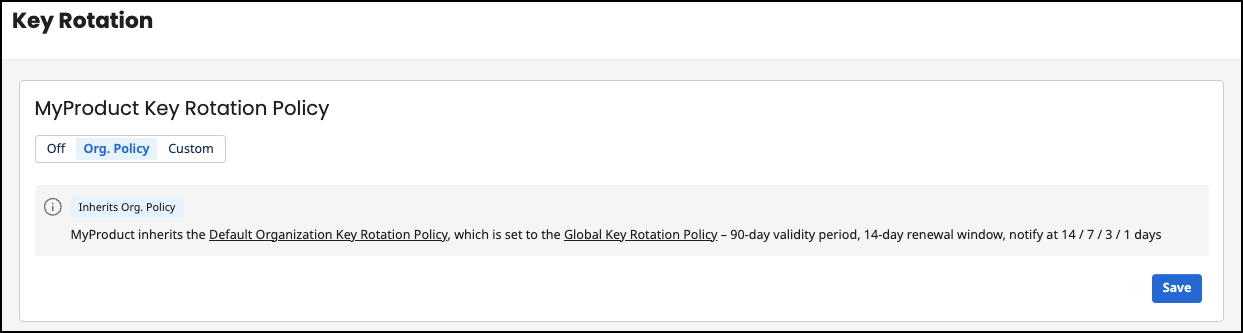
- Select the type of key rotation policy:
- Select Org. Policy if you want the API product to inherit the organization policy.
- Select Custom to define a custom policy for the API product.
- In the Validity section, set the following:
- Validity Period (Days) - The number of days that an API key remains valid after creation.
- Renewal Window (Days) - The number of days before expiration that a new key is generated.
- Email Notifications - When to email the organization admins and global admins of the application's owning organization before key expiration. The default setting sends emails 14, 7, 3, and 1 days before expiration.
- Select Save.
Set API Key Policy by organization
You can configure the API key policy for an organization on a Boomi API Gateway or Apigee gateway. Setting it at this level overrides the global or default API key rotation policy.
Follow these steps to set the API key policy at the organization level:
- Go to Configuration > Organizations and select the organization.
- Select Key Rotation.
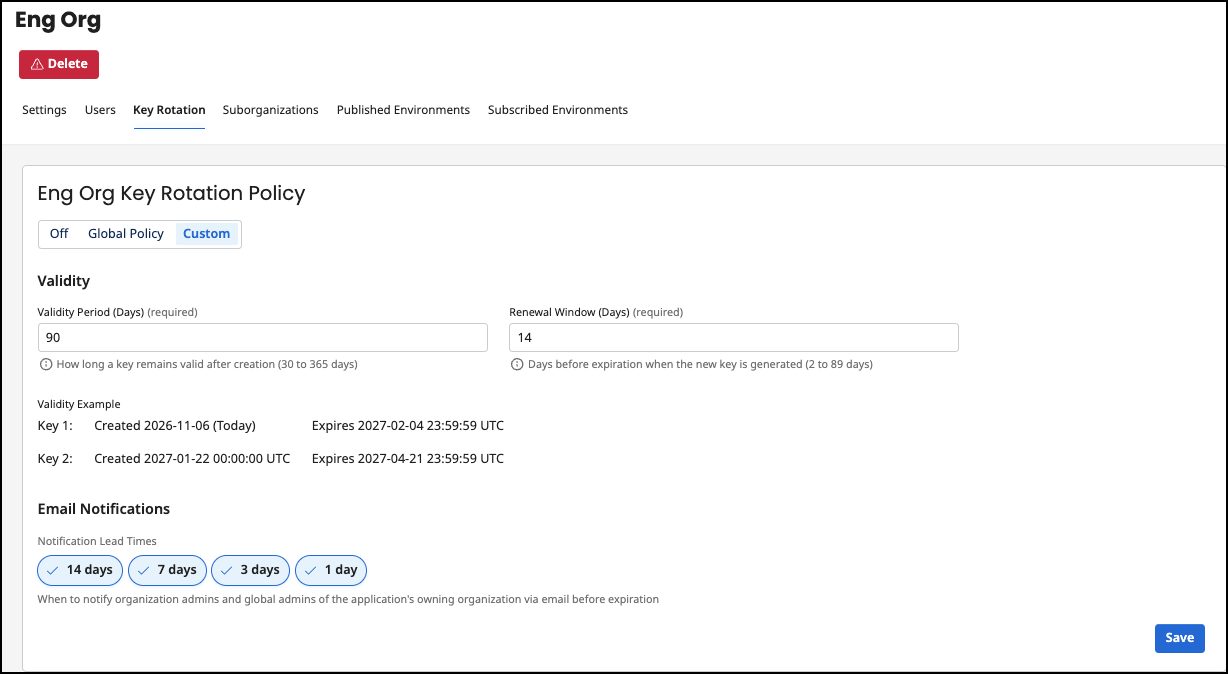
- Select the type of key rotation policy:
- Select Global Policy if you want the API product to inherit the global policy.
- Select Custom to define a custom policy for the API product.
- In the Validity section, set the following:
- Validity Period (Days) - The number of days that an API key remains valid after creation.
- Renewal Window (Days) - The number of days before expiration that a new key is generated.
- Email Notifications - When to email the organization admins and global admins of the application's owning organization before key expiration. The default setting sends emails 14, 7, 3, and 1 days before expiration.
- Select Save.
Manually rotate API keys
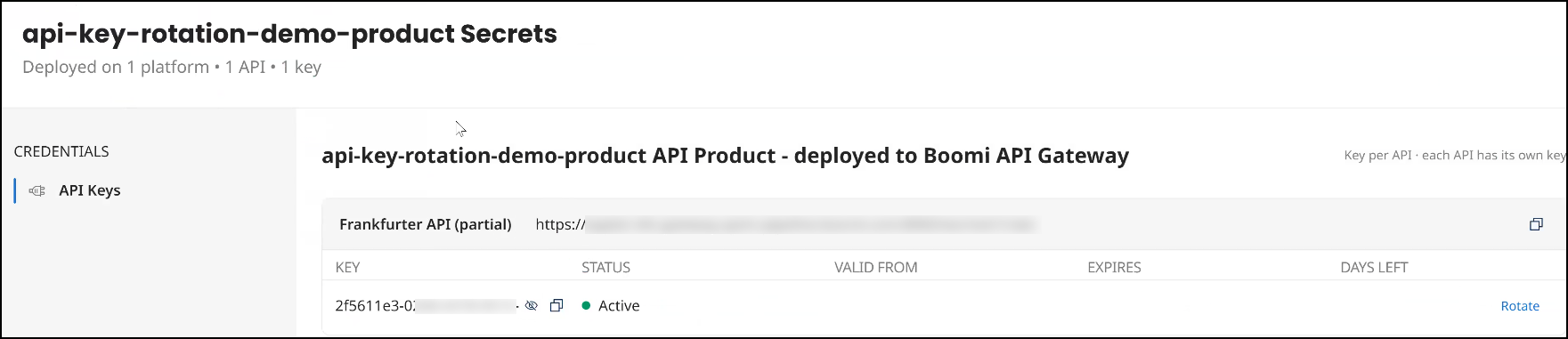
You can manually rotate API keys if you want to immediately update API key configuration. The rotate option is available for active keys. Discovered keys are additional valid keys discovered from the gateway.Multiple keys can be valid at the same time while a key is expiring.
On Apigee gateways, rotating a key updates it for all API products sharing that credential within the same application, even if key rotation is turned off for some of those API products.
To manually rotate API keys, follow these steps:
- Go to Applications and select Secrets on the application's tile.
- On the API Keys section, select Rotate. If the current key hasn't expired, it will remain valid until expiration or revocation.
- Select Rotate.
Manually revoke API keys
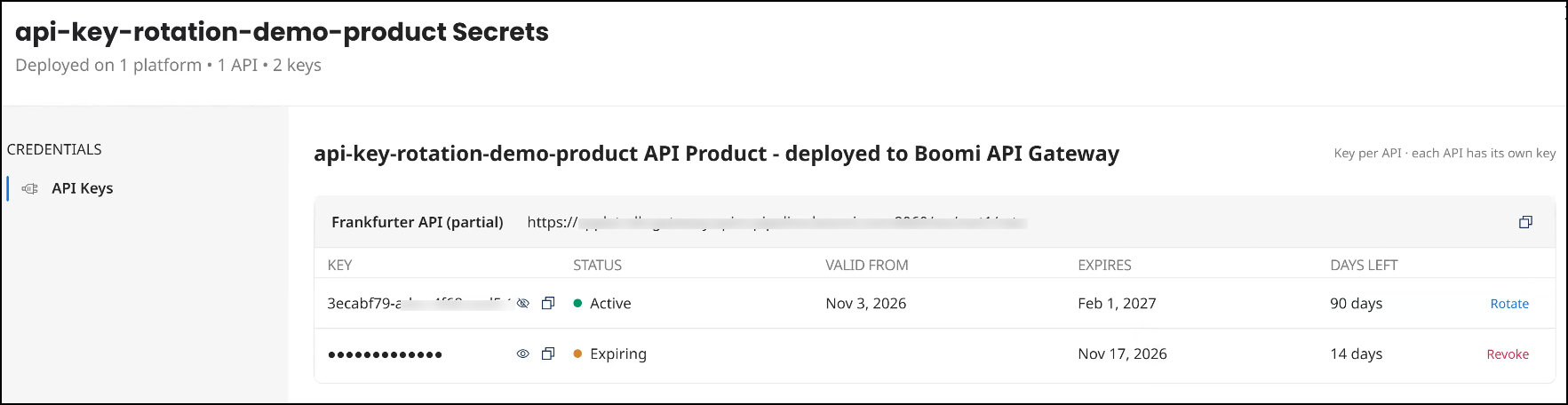
You can manually revoke API keys if you want to immediately update API key configuration. The revoke option is available for expired and discovered keys. Discovered keys are additional valid keys discovered from the gateway. To manually revoke API keys, follow these steps:
- Go to Applications and select Secrets on the application's tile.
- On the API Keys section, select Revoke.
- Select Revoke. THe API key is no longer valid.
API Keys in the Developer Portal
You can view the API keys for any application with subscriptions in the developer portal. If there is an API key policy configured, you can rotate and revoke keys in the developer portal by selecting Secrets.
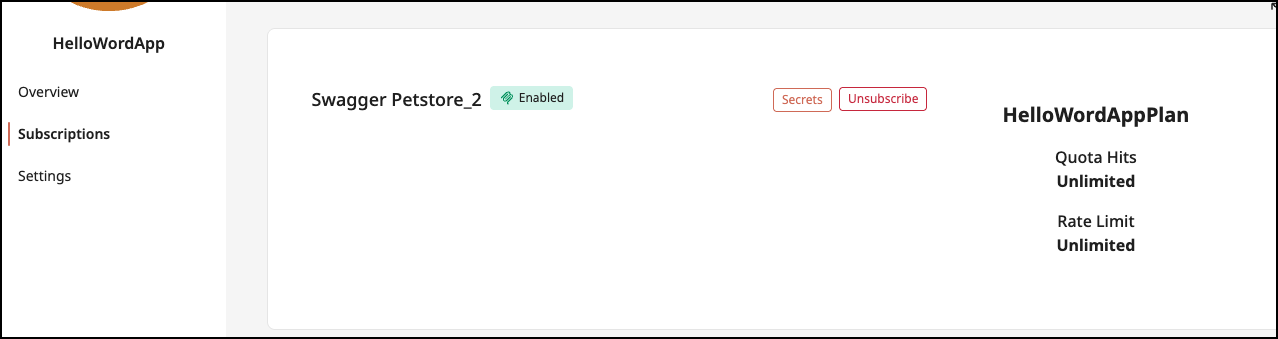
If the application isn't on a Boomi API Gateway or Apigee gateway and doesn't have an API key policy configured, you have the option to Regenerate the API key.
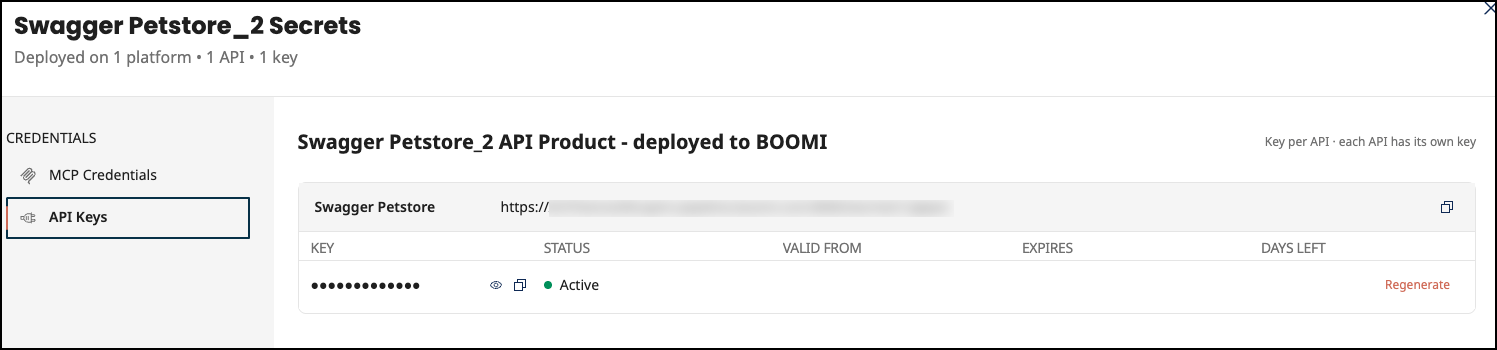
API keys can be regenerated within the API Control Plane for environments that have this ability. Refer to Access Permission Regeneration for more information.
