How to connect to Kong
Connect your Kong Gateway to Boomi's API Control Plane. You can also connect via the Kong Konnect Cloud API.
Prerequisites
To proceed, you will need the following:
-
Access to the instance of your Kong Gateway (Open Source)
- The Kong Gateway needs a database, otherwise neither applications nor subscriptions can be created.
-
Docker to utilize the image of our agent, which acts as an intermediary.
Create a new Environment
To get started, open API Control Plane and follow the instructions below.
-
Navigate to Environments in the menu on the left side.
-
Select Register Gateway.
-
Select Kong.
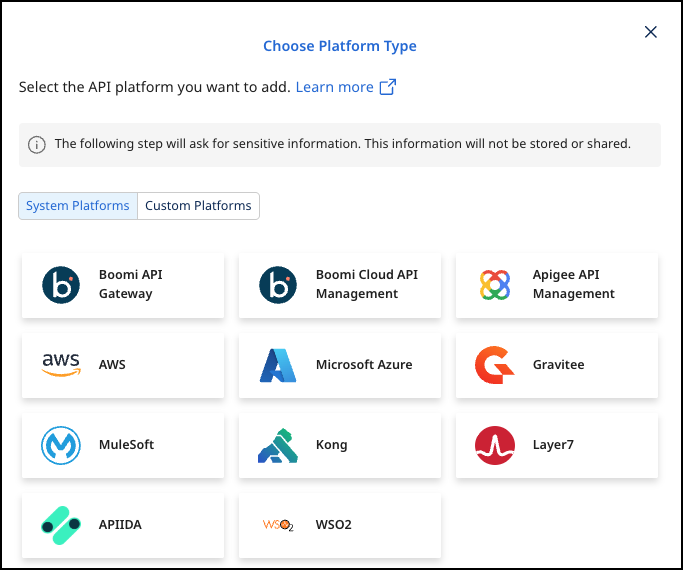
-
Set up the connection to Kong. Add the Gateway Name and URL.
noteFor Kong Community, the URL is your Kong Management API URL. For Kong Konnect, the URL is the Admin URL. If necessary, refer to "Obtain your Kong Konnect Admin URL" below.
- If you are not sure whether you have the correct URL, you can try to access
<URL>/servicesor<URL>/consumers. Both should return a valid response and no errors.
- If you are not sure whether you have the correct URL, you can try to access
-
If necessary, enable Use Kong Konnect to connect your gateway through Kong's cloud platform. It provides a managed connection and centralized control.
- If Kong Konnect is enabled, add an Authentication Token issued by Kong Konnect. The token must be valid for the selected Kong organization and have permission to manage the gateway configuration.
-
Select Next.
-
Add the following information to the Environment Wizard:
- Technical Name - The technical name of an API must be unique.
- Display Name - The display name can differ from the technical name and does not have to be unique.
- URL - The base URL at which the APIs from this environment are made available. It is used to generate the full API URL that is displayed to users after subscribing to an API.
-
Select Connect to Gateway.
-
Select Download and Next. A Docker file downloads.
-
Run the specified command in the same directory of the downloaded file and select Done.
Check the Agent's Status
-
Select Environments in the menu on the left side.
-
Your Agent is now connected to API Control Plane. Click on the tile or the entry in the table to get more detailed information about the status of the connection. This can be useful in case of an error.
Obtain your Kong Konnect Admin URL
- In Kong, select your API Gateway.
- Select Connect in the top right.
- Select Admin API.
- Copy the URL from the CURL command.
