Microsoft Dynamics 365 for Finance and Operations connection
The Microsoft Dynamics 365 for Finance and Operations connection represents a single Microsoft Dynamics 365 for Finance and Operations account instance including sign-in credentials.
You can pair this connection with different Microsoft Dynamics 365 for Finance and Operation connector operations to perform a unique action against a Dynamics 365 for Finance and Operations service.
Connection tab
Compose the API Root URL using the following components. For example, use http://boomi.cloudax.dynamics.com/api/data/ as the URL to interact with the Dynamics 365 for Finance and Operations API.
Protocol -
Enter the appropriate protocol, either https:// or http://.
Base URL -
Enter the URL you normally use to open the web application. For online instances of Dynamics 365, use <tenant>.cloudax.dynamics.com.
Web API path -
Enter the path for the web API. For Dynamics 365, use /api/data/.
Honor basic runtime Proxy Settings - Select to honor and apply the Proxy Host, Proxy Port, Proxy User ID, Encrypted Proxy Password, and Non Proxy Hosts basic runtime proxy settings (container properties) to the connection. By honoring these settings, you can use the connection in situations requiring one to a Dynamics 365 for Finance and Operations service through a proxy. To learn more about these proxy settings, refer to the topic Properties panel, Advanced tab.
Connection Timeout (ms) - (Optional) Enter the number of milliseconds that the connector waits to complete the connection handshake to the Microsoft Dynamics 365 for Finance and Operations service until it times out.
- If you leave this field blank, the connection uses the system default corresponding to the time-out configuration from the underlying JVM or operating system.
- If you enter zero (0), the connection waits indefinitely.
- If you enter a negative value, the connection uses the network time-out settings specified for the basic runtime. For more information, refer to the Changing network timeouts topic.
Read Timeout (ms) - (Optional) Enter the number of milliseconds that the connector waits to complete the data transfer to the Microsoft Dynamics 365 for Finance and Operations service until it times out.
- If you leave this field blank, the connection uses the system default corresponding to the time-out configuration from the underlying JVM or operating system.
- If you enter zero (0), the connection waits indefinitely.
- If you enter a negative value, the connection uses the network time-out settings specified for the basic runtime. For more information, refer to the Changing network timeouts topic.
Use the Microsoft Dynamics 365 for Finance and Operations operation to create the resource action you intend to use (Create, Delete, Get, Query, and so on) with the Web API URL. See related links for more information.
OAuth 2.0 tab
The identity provider for that service endpoint must authorize method calls to the web services.
For OAuth 2.0 authentication, you may need to specify in the external application the Boomi callback or redirect URL. The callback URL is https://<base URL>/account/<youraccount_ID>/oauth2/callback where <youraccount_ID> is your Integration account ID. You can also find your account ID in the Integration platform at Settings > Account > Account Information.
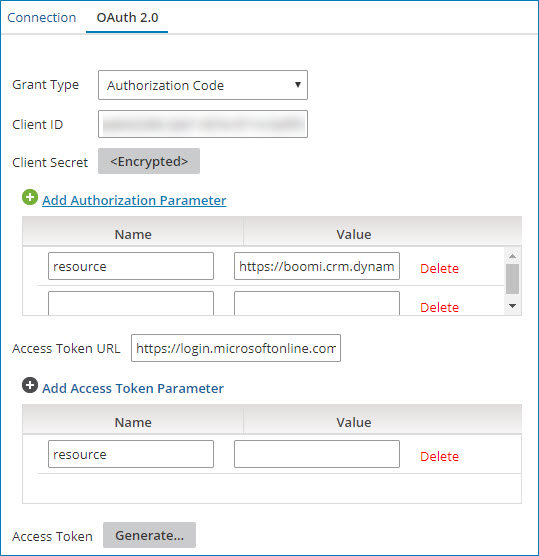
Grant Type - Select the grant type to use. The supported grant types are:
- Authorization Code - this is the standard, 3-Legged OAuth2 authorization where you grant the client an authorization code they can exchange for an access token.
- Client Credentials - uses client credentials to retrieve an access token directly instead of asking for user authorization. You use this authorization for administration tasks specific to a client.
Client ID (Authorization Code and Client Credentials grant types) - The unique application ID used to request authorized access to client data.
To find the application ID in the Microsoft Azure portal, navigate to Azure Active Directory > App registrations and view the application details.
Client Secret (Authorization Code and Client Credentials grant types) - The alphanumeric key value created in the Microsoft Azure portal.
To create a key in the Microsoft Azure portal, navigate to Azure Active Directory > App registrations, open your application's details, and click Settings > Keys. Create and save a new password to generate the key value.
Add Authorization Parameter (Authorization Code grant type) - The name and value of additional or custom authorization parameters required by your application.
(Required) The Dynamics 365 for Finance and Operations connection automatically populates a resource authorization parameter with resource as the name. Enter the resource value that contains the protocol and base URL of the web API (for example, https://boomi.cloudax.dynamics.com). To ensure that the resource value succeeds when testing your connection, configure a reply URL in your application's Settings. You can find this setting in the Azure Active Directory > App Registrations tab of the Microsoft Azure portal.
Optionally, add the name and value of additional extensible endpoint parameters as needed.
Access Token URL (Authorization Code and Client Credentials grant types)
The endpoint address (URL) provided by the application to make API requests.
When using the Authorization Code grant type, enter https://login.microsoftonline.com/common/oauth2/token as the common URL for generating a token to authenticate API calls to the Dynamics 365 service.
When using the Client Credentials grant type, enter the tenant-specific URL https://login.microsoftonline.com/<tenant_id>/oauth2/token, replacing <tenant_id> with your Directory ID found in the Microsoft Azure Portal. To find the Directory ID, navigate to Azure Active Directory > Properties > Directory ID in the Microsoft Azure portal.
Add Access Token Parameter (Authorization Code and Client Credentials grant types)
(Required) The name and value of additional or custom token parameters required by your application. Enter the same resource values used to populate the Add Authorization Parameter resource fields.
Due to a known Dynamics 365 for Finance and Operations issue, the URL for the value field cannot include a trailing slash (/). Otherwise, the authentication fails.
Access Token (Authorization Code grant type) - The encrypted access token issued by the Azure Active Directory used to authorize access to the Dynamics 365 for Finance and Operations account.
Click Generate to fetch the token.
In the Microsoft Azure portal, add the Microsoft Dynamics ERP and Windows Azure Active Directory APIs as required permissions.
Test connection
You can test your connection settings before you use or save the connection in a process. The Test Connection ensures that your specified settings are correct, valid, and accessible. If the test connection is successful, you can save the connection. Otherwise, review and correct any incorrect settings, then test again.
You can only run the Test Connection against containers associated with your account (local runtimes, runtime clusters, and runtime clouds).
